Orders Board
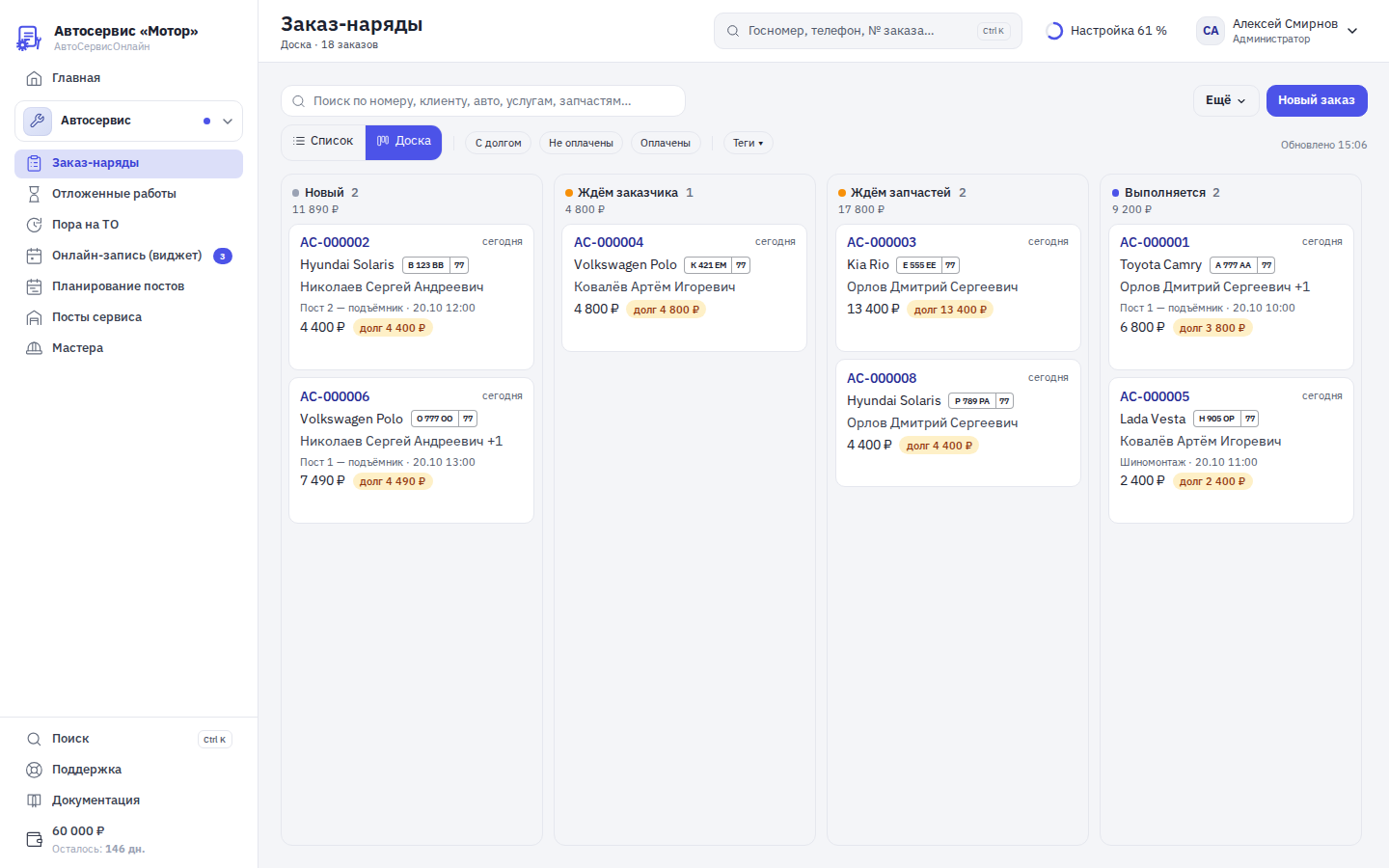
The List answers the question “where is a particular order,” while the Board answers “what is currently happening in the service.” Orders are arranged in status columns: how many vehicles are waiting for parts, what is ready for handover, and what has been delayed. You can drag a card to another column—the Status will change just as it does in the List and in the Order card, including all prompts and checks.
The Board is the second view of the “Work orders” Section, not a separate Module: there is no separate fee or Permission, and it is visible to anyone with access to the Orders List.
Where to find it
Path: Auto service → Work orders, the “List | Board” toggle in the row above the List. The selected view is remembered on this device. A direct link to the Board is the Section URL with ?view=board: convenient to bookmark on the Service advisor’s tablet or on a TV.
How to disable the Board. Account administrator: Settings → Work orders, select the “Orders Board” checkbox → Save. It is Enabled by default. When the checkbox is cleared, there is no toggle, and a link with ?view=board opens the regular List. Orders, Statuses, and Details do not change.
Columns and cards
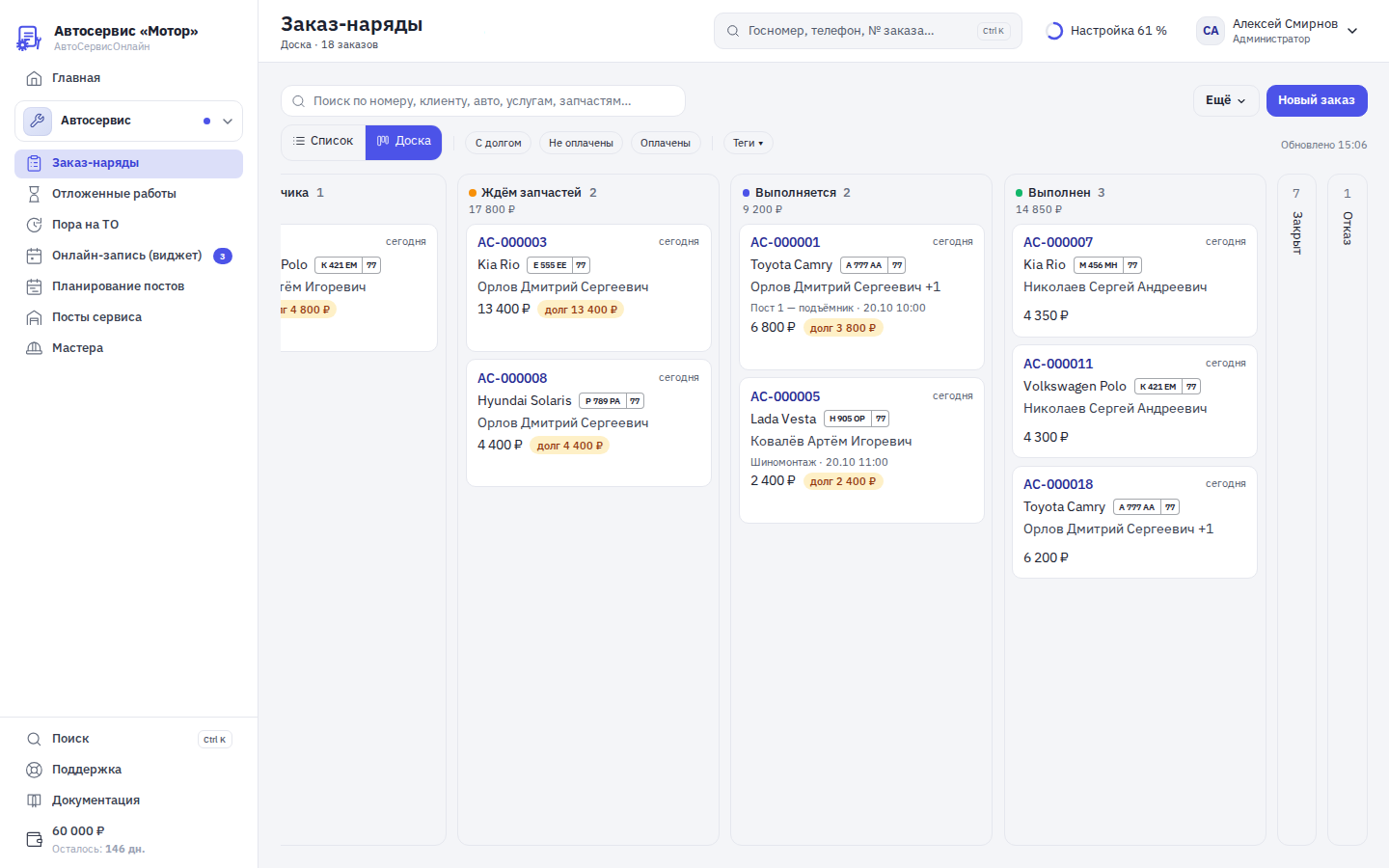
Columns from left to right: New · Awaiting customer · Awaiting parts · In progress · Completed · Closed · Declined. The column header shows the Number of Orders and their total Amount. Orders with the “Deleted” Status are not displayed on the Board.
“Closed” and “Declined” are collapsed into narrow strips on the right: click the strip to expand the column, and click ‹ in its header to collapse it again. Both at once—More ▾ → Expand closed / Collapse closed. The Selection is remembered. The strips also accept cards: drag an Order to “Closed” without expanding the column.
The card displays:
- Order number and, on the right, how many Days it has had this Status: “today,” “1 day,” “6 days”;
- Vehicle and License plate;
- Mechanic responsible for the Order’s Labor (if there are several Mechanics—“Dmitry Orlov +1”); if no Mechanic is assigned, the Service advisor is shown in grey;
- Order Amount and, with the “Order Payments” Module, a yellow badge showing “debt 9 600 ₽” while the Order has not been fully Paid;
- with the “Service Bay Planning” Module—the Service bay and Time (“Service bay 2 · 15.10 14:00”);
- with the “Tags” Module and permission for it—the Order’s Tags.
How many Days in the Status. It is counted from the moment the Order received its current Status, not from its creation: if it was moved to “Awaiting parts” yesterday evening, today in the morning it already shows “1 day.” Days are calendar Days, Moscow time. If you change the Status, the counter starts over (“today”). For Orders created before the Board was introduced, the countdown starts from the latest Status change in the History, or from the creation Date if there is none.
What is highlighted in colour. In columns from “New” to “Completed,” the Number of Days turns yellow from Day 3 and red from Day 7, making it easy to identify Orders that have become stuck. In “Closed” and “Declined,” the Number is grey and not highlighted.
The client’s full name and Phone are not displayed on the card—neither as text nor as a tooltip. This is intentional: the Board can be displayed on a screen in the waiting area without showing other people’s personal data. The Client is visible in the Order itself.
Clicking a card opens the Order (Ctrl/Cmd-click opens it in a new tab). The ⋮ button in the corner of the card provides Copy (as in the List) and Delete (only with the “Delete Orders” Permission; the Order moves to “Deleted,” and immediately after deletion, the Undo button is available).
Order and volume. In columns from “New” to “Completed,” the Orders that have been in the Status the longest are at the top—you should start your day with these. In “Closed” and “Declined,” the most recent ones are at the top. Each column initially contains 20 cards, and the “More N” button loads 30 more. The Board cannot hold more than 200 cards in a single column: instead of “More,” “Show in List” appears, and the List opens with the required Status.
How to change the Status
- Drag the card to another column. With a mouse: click and hold the card, then drag it. With a finger (tablet): hold your finger on the card for a quarter of a second—the card will be “picked up”—and drag it; a regular swipe simply scrolls the Board. Near the edge of the screen, the Board automatically scrolls in the direction of the move.
- The “Status ▾” button in the bottom-right corner of the card (on a desktop, it appears on hover). On a phone, this is the primary method.
- Using the keyboard. Tab—move to the card, Up and Down arrows—move between adjacent cards in the column, Left and Right arrows—move to the first card in an adjacent column. Space—pick up the card, Left and Right—select the column, Space or Enter—drop it, Esc—cancel. Screen readers announce every step.
While the Status is being changed, the card fades and is not moved again.
What moving an Order does. Exactly the same as changing the Status in the List and in the Order card:
- it asks wherever the program asks: “Complete the order?” (in “Completed”), “Close the order?” (in “Closed”), “Decline the order?” (in “Declined”), “Reopen the order for editing?” (from “Closed” back to an active Status);
- writes off Parts from inventory when entering “Completed” or “Closed,” and returns them when leaving;
- warns about Money: for example, when declining an Order for which Payment has already been made (“process a Refund”).
Checks before closing. If checks (License plate, Mileage, Mechanics, signature, Payment) are enabled in Settings → Work orders, and the Order does not pass them, the card will return to its previous column, and the “Cannot close the order …” window will open with a list of comments and an “Open Order” link. Correct the items, click “Check again,” and then “Hand over and close”—directly in this window. The Administrator can close it anyway; this will be recorded in the Order History.

The Permissions are the same as for the Orders List. If the Account Balance is exhausted, moving Orders and changing the Status are unavailable: the “Status” button is grey and displays a top-up tooltip.
Filters, Search, and updates
Above the Board are the same Search, Payment filters (“With debt,” “Not paid,” “Paid”), and “Tags ▾” as in the List, as well as “New order.” The Numbers and Amounts in the column headers already account for the active filter; the “Reset” button restores everything. Search works the same way as in the List: by Number, Client, Vehicle, License plate, Services, and Parts.
The Board updates automatically: every 30 seconds while the tab is open, and immediately upon returning to it. Colleagues’ changes appear without a reload. The last update Time is shown above the columns on the right (“Updated 14:05”). While you are moving a card or have a window or menu open, the update is delayed. If the connection is lost, “No connection · data as of 14:05” appears above the columns, while the Board itself remains in place.
“Full screen” for a TV
More ▾ → Full screen (on a computer and tablet)—a Mode for a TV in a waiting area or check-in area: no menus or header, larger font, and the “Status” and ⋮ buttons are always visible on the cards. The Board continues to update automatically, so the TV displays the current Status without anyone having to interact with it. To exit, press Esc or click the “Exit full-screen mode” button at the top right.
Clients can see the TV, so in this Mode, as on the regular Board, full names and Phone numbers are not displayed—only Numbers, Vehicles, Mechanics, and Amounts.
On a phone and tablet
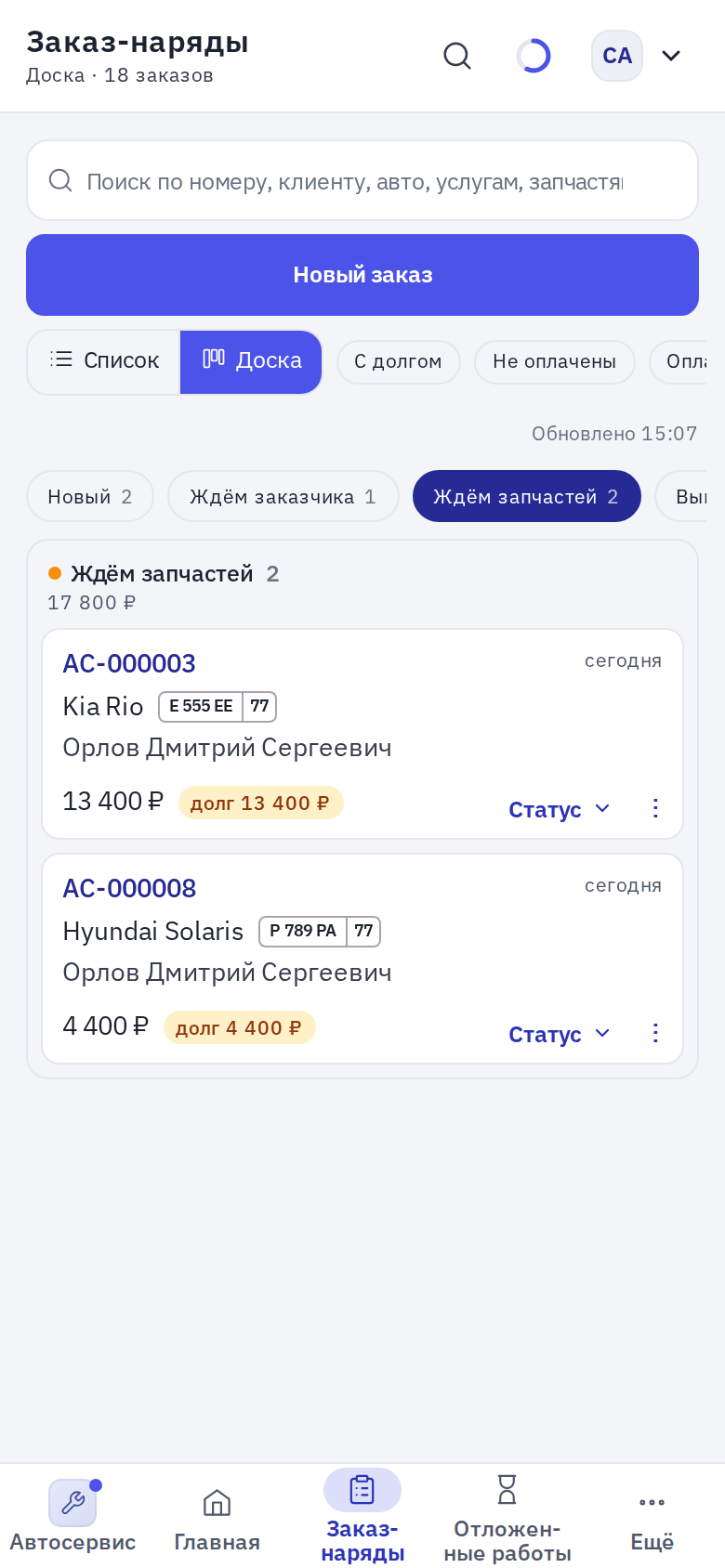
Phone. At the top is a row of Status chips with counters (“Awaiting parts 3”), with a single column below it. A chip selects the column, and swiping left or right through the card List moves to an adjacent column. Change the Status using the “Status ▾” button on the card (it is always visible on a phone); cards cannot be dragged on a phone.
Tablet. All columns are arranged in a row, and the Board scrolls horizontally one column at a time. To move an Order, hold your finger as described above.
FAQ
- “There is no ‘List | Board’ toggle.” The Administrator cleared the “Orders Board” checkbox in Settings → Work orders, or you do not have Access to Orders. The Section itself continues to work as before.
- “I dragged a card, but it went back.” Either the Order did not pass the pre-closing checks (a window with comments will open), or you answered “No” to “Complete the order?” or “Close the order?”, or the connection was interrupted (an error Message will appear). The Status did not change.
- “I cannot move it with my finger.” Hold your finger on the card for a quarter of a second without moving it, and only then start dragging. If this does not work, click “Status ▾” on the card.
- “Why does it say ‘6 days’ if the Order was created yesterday?” Days are counted from the latest Status change, not from creation. Editing an Order without changing its Status does not reset the counter, unlike the “Updated” column in the List.
- “There is no client’s surname on the card.” This is by design: the Board is safe to display on a TV in the waiting area. Click the card—the Client is visible in the Order card.
- “Where are Orders with the ‘Deleted’ Status?” They are not displayed on the Board. You can find and restore a deleted Order in the List: use the “Deleted” filter, then change the Status.
- “The Board does not show the latest changes.” It updates every 30 seconds and upon returning to the tab; the update is delayed while a window or menu is open. If “No connection” appears above the columns, check your internet connection.
- “There are not enough Orders in the column.” Click “More N” at the bottom of the column. If there are more than 200 Orders, use “Show in List” or Search and Filters.
Next
- Orders List: Search, Filters, sorting, and changing the Status from the table.
- Order Statuses: what each Status means, inventory, and pre-closing checks.
- Order card: the two card views and Section Settings.
- Payment: where the “debt” on the card comes from.