Positions
A position is an organizational unit (for example, “Director”, “Shop Manager”, “Mechanic”, “Service advisor”). It allows you to reflect the auto service structure and identify a manager. A position does not grant permissions in the system.
Where to find it
Path: Settings → Team → Positions.
The item is visible only to the account administrator. Above the tree is the “Search by name…” field; a position with employees displays an icon with their number. On the right side of the row are the “Edit” pencil and “Delete” trash can.
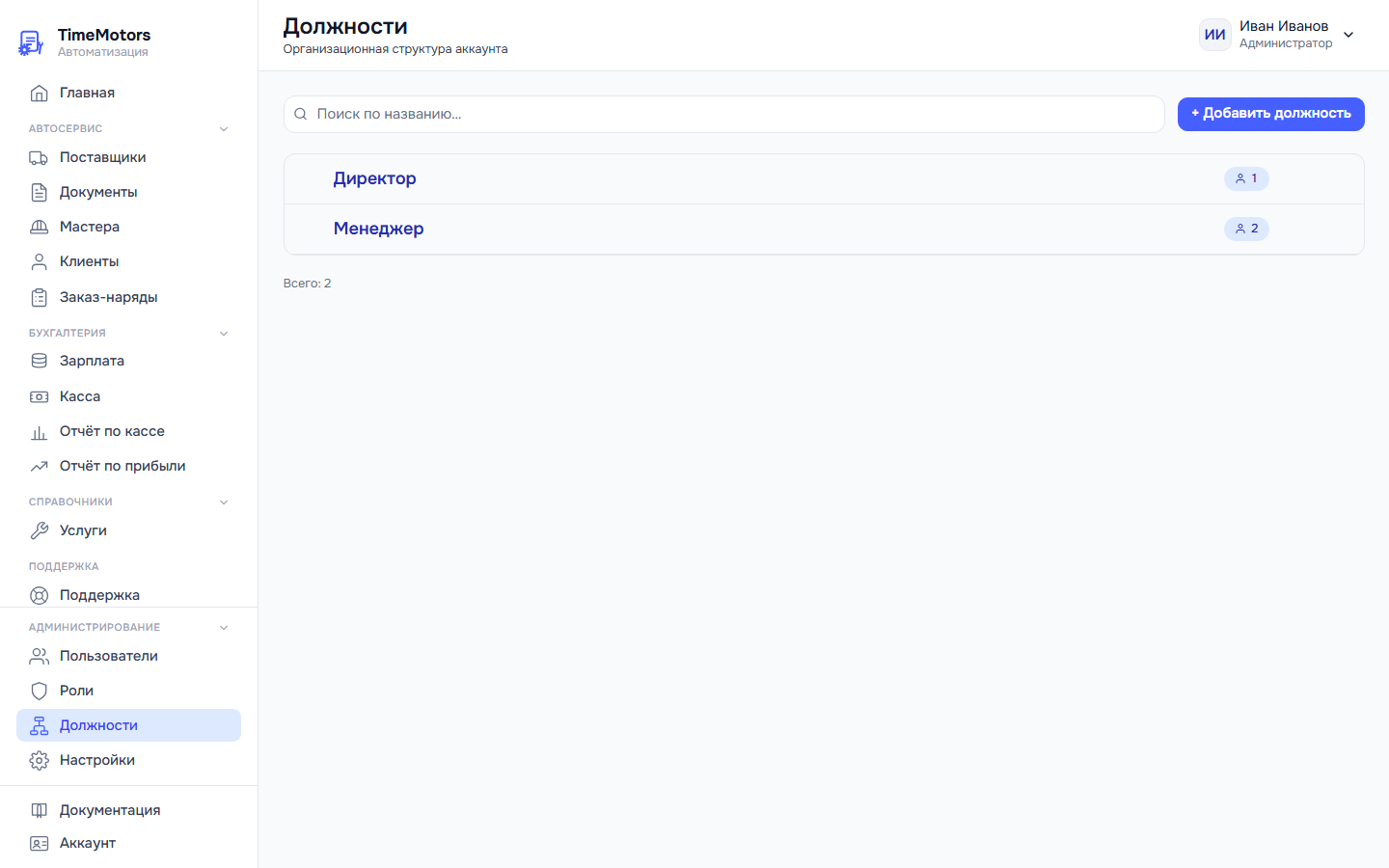
Position tree
Positions are organized as a tree: each position may have a parent. This is how the hierarchy is displayed:
Director
├── Shop Manager
│   ├── Body Mechanic
│   └── Engine Mechanic
└── Chief Accountant
    └── Accountant
One employee may hold several positions. For an assigned position, you can select the “Lead.” checkbox — this marks the employee as a manager in that position. This is only a note in the organizational structure; it does not affect permissions or calculations.
How to create a position
- Click + Add position.
- Enter the Name and, if desired, the Description.
- Optionally select a Parent position — it will become the parent branch in the tree. If you leave “— Root (no parent)” selected, the position will be at the root.
- Click Save.
To move a position to another branch, open it with the pencil and change the Parent position.
How to assign employees
Employees are assigned from their item card, not from a position:
- Open Settings → Team → Users and use the pencil to open the required employee.
- Go to the Positions tab.
- Select a position in the Available column and move it to Assigned using the arrow. You can assign several positions.
- If this person is a manager, select the Lead. checkbox next to the assigned position.
- Click Save.
Difference from roles
- Role is a set of permissions in the system. It determines what a person can do.
- Position is an organizational structure association. It does not grant any permissions.
Example: an employee with the “Engine Mechanic” position and without any roles will only be able to sign in to the system and view “Home”, “Support”, “Documentation”, “Feature requests” (the “Tasks” section), and “Settings” with “Account” and “Notifications” — no work sections will be available to them.
Common mistakes
- “I created a position, but no permissions appeared.” This is expected. Permissions are granted through Roles, while positions are managed separately.
- “The position cannot be deleted.” The message “Cannot delete a position with child positions” appears — first move the child positions to another parent or delete them.
- “There is no button to add employees to a position.” This is correct: assignment is performed in the user item card, on the Positions tab.