Feature requests
Your ideas and requests for the System. Unlike Support Chat, each request has a Status and can be discussed in comments.
Where to find it
Path: Tasks → Feature requests — the “Tasks” section is opened with the toggle at the top of the menu, and “Feature requests” is the second item in it. The screen is called “My feature requests”. The item is available to all users. On a mobile phone: tap Sections → Tasks → Feature requests.
Quick creation — the + button to the right of the “Feature requests” item in the “Tasks” section menu (with the “New feature request” hint): it opens the creation window from any screen. This button is not available on mobile — create requests from the “My feature requests” screen.
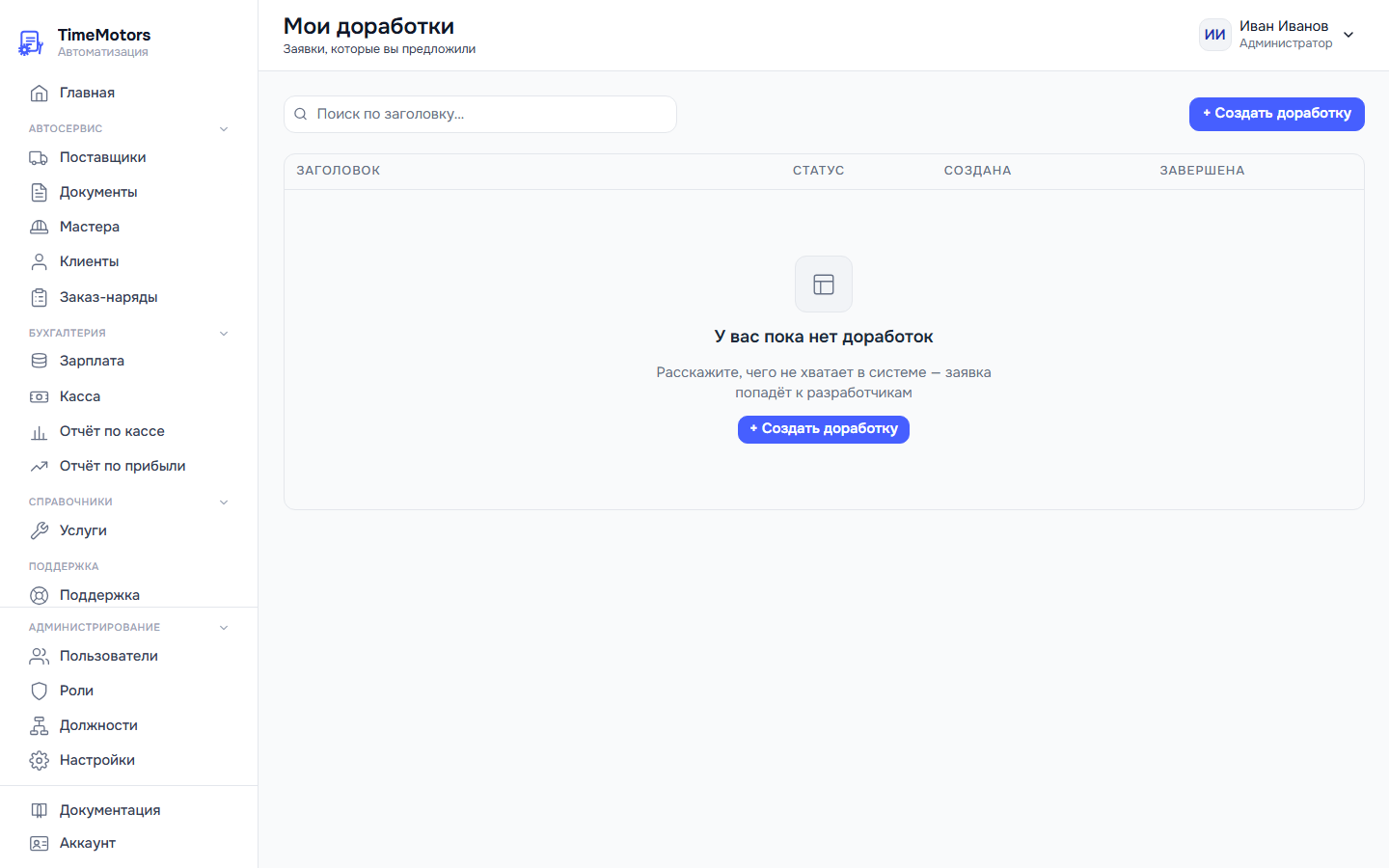
What the list shows
Requests created by you. At the top, there is a “Search by title…” search field. For each request:
| Column | Contents |
|---|---|
| Title | A brief description of the Task |
| Status | Coloured label |
| Created | Creation Date |
| Completed | Date when the request was marked “Completed” |
Click the row — it will expand to show “Description”, “Reason for decline” (for the “Declined” Status), and “Comments”.
Four statuses
- New — the request has been received and is awaiting review.
- In progress — accepted and being worked on.
- Completed — implemented and available in the System. The “Completed” Date is set.
- Declined — it will not be implemented; the reason is shown in the expanded request in the “Reason for decline” field.
Only Support can change the Status. The request does not include a Deadline.
How to create a request
- + Create feature request (or the + button next to the “Feature requests” item in the menu). The “Feature request / Task” window will open.
- Title (required) — briefly: “Export Orders to Excel”.
- Description — in detail: what is needed, why it is needed, and how it is inconvenient at the moment.
- Attachment — one file up to 10 MB (optional): drag and drop the file, select it, or paste a screenshot using Ctrl+V directly into the window.
- Send — “Task sent” will appear.
The request appears in your list with the “New” Status (if you created it using the + button in the menu while the list was open, refresh the page). Support receives a Notification about the new request.
You cannot edit or delete a submitted request — write any clarifications in the comments.
Discussion in comments
When you expand a request, you will see the “Comments” section:
- Your messages — with your full name.
- Support replies — signed “Support”.
A comment is plain text entered in the “Write a comment…” field, with no formatting. You can attach one image to it using the “Image” button (up to 10 MB). A comment cannot be sent without text. If it cannot be sent, the reason is displayed below the field, while the text and image remain — correct the issue and click “Send” again.
What to write and what not to write
Write to Feature requests:
- I want the Cash desk to automatically create an Income record when an Order is paid.
- I need an export of Clients to Excel.
- Add a Client filter to the Profit report.
Write to Support:
- The Website is not opening / there is an error on a specific page.
- The confirmation email is not arriving.
- How do I configure X?
- My Employee sees something different from what they should.
Notifications
By Default, Notifications about Status changes and Support replies are disabled — you see new requests when you open “My feature requests”.
An Account administrator can enable them: Settings → Notifications, the “Notify about changes to feature requests” checkbox (creation, Status change, comments), and the channels:
- Email — an email to the author of the feature request and to the Account administrators (except the person who made the change);
- Push — a Notification in the mobile App for Account administrators whose personal settings have push enabled for the “Feature requests” type (see What is available on mobile).
After making your selection, click “Save”.
Common issues
- “I created a request, but it is not in the list”. Refresh the page — a request created using the + button in the menu appears in the open list after refreshing. If it is still missing, contact Support.
- “I want to delete my request”. Requests cannot be deleted or edited — only Support can mark them as “Declined”. Write a comment stating that the request is no longer relevant.
- “I did not receive an email about a Status change”. Notifications for feature requests are disabled by Default — the Account administrator can enable them in Settings → Notifications (see above).
- “An Employee created a request, but I (the administrator) cannot see it”. Each user sees only their own requests.
- “It is taking a long time to get a reply”. Large feature requests are implemented one by one, and the request does not specify a Deadline — you can leave an additional comment in the request itself.