Work Bundles
«TO-15000: oil change + oil filter + air filter + spark plugs» — configure it once, then add it to any order with a single button. All items will be added to the order’s labor and parts at once.
The Work Bundles module. It is included in the standard set of modules for new accounts; if the button is missing, the module is disabled for the account (support can enable it; write to the chat «Support»), or the employee’s role does not have the «Submodule access» permission for «Work Bundles». The account administrator manages the bundle reference data; an employee with this permission can apply bundles to orders but cannot change the reference data.
Where to find it
Bundle reference data: Path: Reference data → Work Bundles.
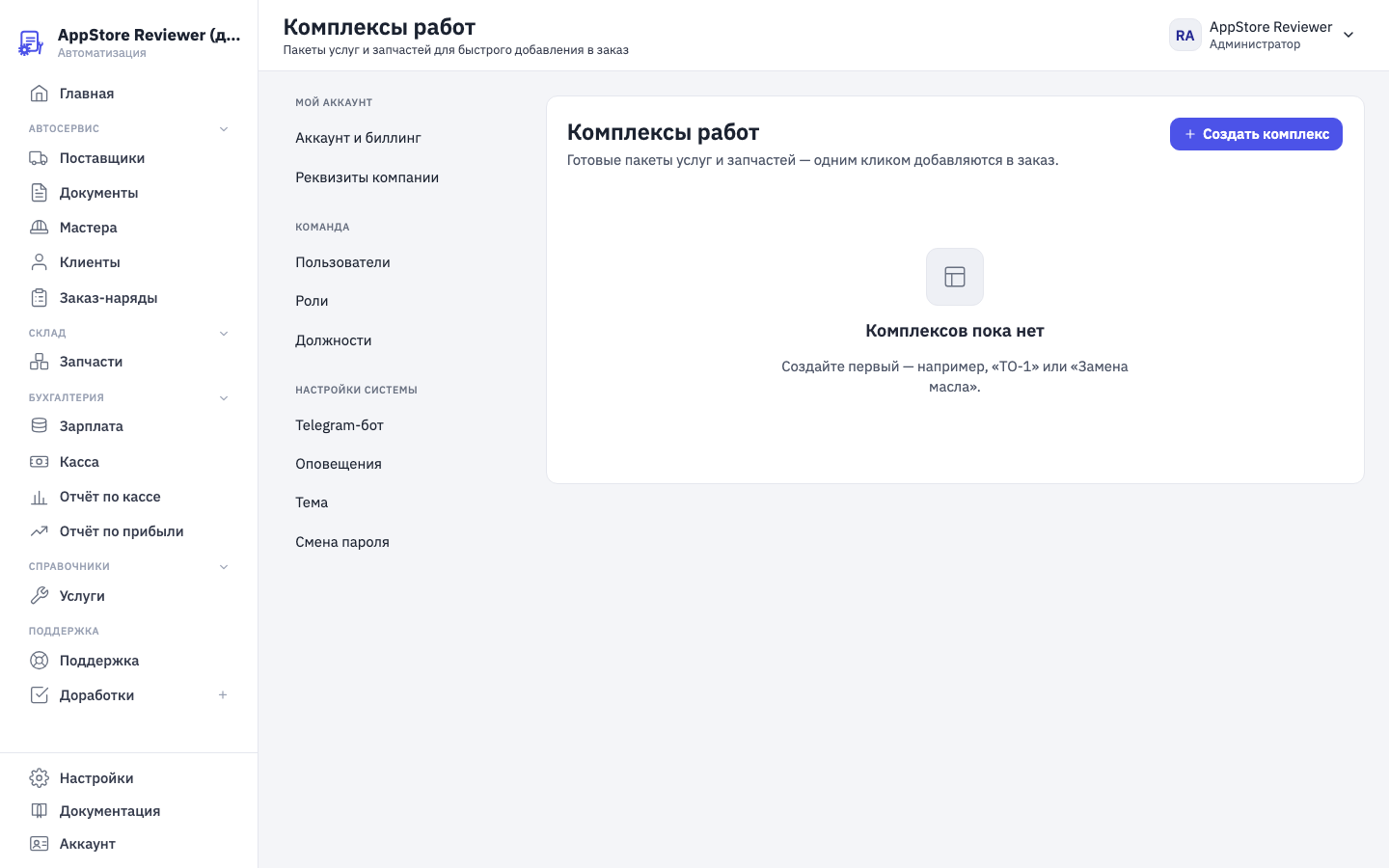
Applying a bundle to an order: the Labor and parts tab → Add ▾ in the Labor table → Work Bundle.
Bundle structure
| Field | Description | |
|---|---|---|
| Name | «TO-15000», «Front brake pad replacement», «Body polishing» | |
| Description (optional) | What is included, which vehicle it is suitable for | |
| Active | A disabled bundle is not offered in orders | |
| Bundle contents | Services from the reference data + parts (name, part number) |
For each item, specify the Quantity and Default Price. If a service item does not have its own price, it uses the price from the service price list: either a fixed price or standard hours at the applicable rate. If there is no price in the price list either, the line will be added to the order with a zero price, which you can fill in within the order. Parts do not have a price list, so their default price is specified in the bundle.
How to create a bundle
- Reference data → Work Bundles → Create bundle.
- Enter the name and, if desired, a description.
- Add service — select a service from the reference data, and specify the quantity and default price.
- Add part — enter the part name, part number (optional), quantity, and default price.
- Assemble the contents and click Save.
How to apply a bundle to an order
- Open the order card → the Labor and parts tab.
- Add ▾ in the Labor table → Work Bundle → in the Bundle Selection window, select the required bundle from the list of active bundles.
- All bundle items are added to the order immediately:
- Labor — in the Labor table, without a mechanic; with the Price × quantity rate if the bundle has its own price or the price list has a fixed price, and the Rate × h rate if the service is defined in standard hours in the price list (hours = service standard × quantity in the bundle);
- Parts — in the Parts table, using the price from the bundle, purchase price 0, and markup —.
- You do not need to click Save before adding a bundle: your unsaved changes to services and parts are preserved, and new lines are added to the end of the list. To save the other order changes, click Save as usual.
- You can then delete lines, change quantities and prices, and assign mechanics—the bundle only creates a draft. The part number and name from the bundle cannot be changed in the order. The order history retains a record of which bundle the lines came from.
Quantity. The quantity in a bundle can be fractional. For a part, it is transferred to the order as is (0.5 l of oil remains 0.5 l), while for labor, the quantity in the order line is an integer: when added, it is rounded according to the standard rules and cannot be less than 1 (0.5 → 1, 1.5 → 2, 2.5 → 3). The mechanic and mechanic percentage are not specified in the bundle—they are assigned within the order. Standard hours are not entered in the bundle either: they come from the service price list.
Part purchasing. The purchase price for parts from a bundle is 0. Until it is entered in the Purchase Price column of the Parts table, the entire price of such a part is counted as profit in the profit report.
Applying the same bundle again adds the items again—this is convenient for «TO-1 + TO-2». A bundle cannot be applied to a closed order: first, Open order.
Capabilities
- Disable a bundle (clear Active) — it will disappear from the selection in orders, and the reference data list will show the «disabled» label; lines in existing orders do not change.
- Editing a bundle does not affect orders to which it has already been added.
- If the «Service due» module is enabled, you can specify a «Repeat: every … km or … months» interval for a bundle: after an order with this bundle is completed, the program will remind you when it becomes due (details).
- A custom price for a promotion—for example, «TO-15000 for 2990 instead of 3490»—is configured as a separate bundle with its own prices.