Contract
A service contract for vehicle repairs. Usually with a legal entity or individual entrepreneur, less often with an individual.
Where to find it
Template: Settings → Document templates → “Contract” tab. Print: Work order → “Documents” tab → “Contract” item card → PDF / Word / Print.
What the document contains
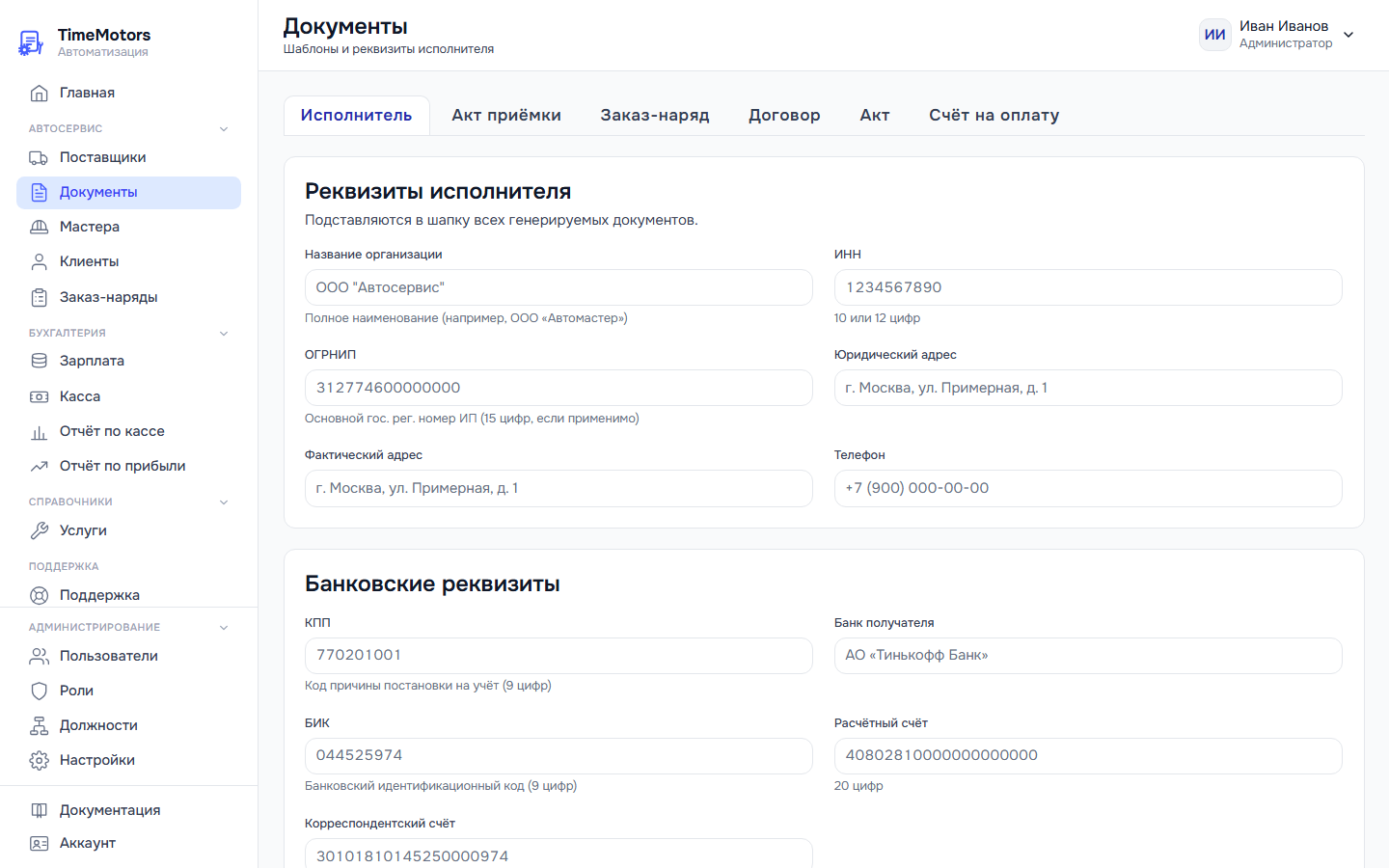
- Logo and header — date and time, “Contract No.…”, name of the auto service, Tax Identification Number (INN), Primary State Registration Number of an Individual Entrepreneur (OGRNIP) (if completed), legal address, phone.
- “SERVICE CONTRACT No.… dated …” — title. The contract does not include a city.
- Preamble — “[name of the auto service], hereinafter referred to as the ‘Contractor’, on one hand, and [client], hereinafter referred to as the ‘Customer’…”.
- Contractor — name only: the Contractor has no fields for the director or “acting on the basis of”.
- Customer — legal entity — name and “represented by [position] [full name of the head], acting on the basis of [document]”.
- Customer — individual entrepreneur — full name and “represented by Individual Entrepreneur [full name], acting on the basis of [document]”.
- Customer — individual — full name only.
- “1. SUBJECT OF THE CONTRACT” — vehicle repairs: make and model, license plate, VIN. This section is fixed.
- Sections 2–9 — contract text from the template: obligations of the parties, settlement procedure, warranty, force majeure, and final provisions.
- Details and signatures of the parties:
- “Contractor:” — name, Tax Identification Number (INN) and Taxpayer Identification Number (KPP), Primary State Registration Number of an Individual Entrepreneur (OGRNIP) (if completed), legal address, phone, bank, Bank Identifier Code (BIC), settlement account, correspondent account (include only completed banking details).
- “Customer:” — client’s name; for a legal entity or individual entrepreneur — Tax Identification Number (INN), Taxpayer Identification Number (KPP), Primary State Registration Number (OGRN) or Primary State Registration Number of an Individual Entrepreneur (OGRNIP), address, bank, settlement account, correspondent account, Bank Identifier Code (BIC); phone.
- Spaces for signatures and “M. P.”.
The contract does not include a list of work and prices — only the total amount via the <СУММА> tag. The individual’s passport details are not inserted into the contract.
Tags in the contract text
<СУММА>— the order total in figures and words.<ДАТА_ОКОНЧАНИЯ>— the contract date plus 1 year, for example, “07” October 2027.
In your Word template, replace the tags with the keywords “СУММА”, “СУММА_ПРОПИСЬЮ”, “ДАТА_ОКОНЧАНИЯ”; you can place them anywhere in the contract (Keywords and conditional blocks).
What to complete for a client — legal entity
Client card fields (type Legal entity) included in the contract:
- Full organization name (if empty — Short name).
- Tax Identification Number (INN), Taxpayer Identification Number (KPP), Primary State Registration Number (OGRN), Legal address, banking details.
- Position (in the genitive case) — for example, “General Director”.
- Full name of the head (in the genitive case) — “Ivanov Ivan Ivanovich”.
- Gender of the head — “Female” produces “acting”, while “Male” or empty produces “acting”.
- Acting on the basis of — usually “the charter”.
Empty fields are not replaced with dashes: the details row is simply skipped, and the corresponding part is omitted from the preamble. Fields in the nominative case (Full name of the head, Position of the head) are not included in the contract.
What to complete for a client — individual entrepreneur or individual
- Individual entrepreneur: Full name (in the genitive case), Tax Identification Number (INN), Primary State Registration Number of an Individual Entrepreneur (OGRNIP), Acting on the basis of (by default, “certificate of state registration”), Registration address, bank.
- Individual: Full name and phone. Passport details from the card are not printed in the contract — if necessary, download the contract using the Word button and enter them manually.
What can be configured
- Contract text (sections 2–9) — in your Word template: Settings → Document templates, “Contract” tab → “Download sample” (it already contains your text), make any changes in Word, and upload it using the “Upload template” button (Document templates). Until you select your own template, the previously saved text or the standard text is printed. You should check it against your requirements: the gap in the warranty period (item 6.1, “__ __ months”), item 5.4 “The Contractor is not a VAT payer”, and the deadlines and procedure for considering disputes (items 8.1 and 8.6 specify different response periods for claims).
- Document number and date — in the order, in the “Contract” item card on the “Documents” tab. The same number and date are printed in the certificate of completed work in the line “service contract No.… dated …”.
Typos in the standard text have been corrected. If you previously saved your own text, it remains unchanged and is included in the template sample. Your selected template is used for Word, PDF, printing, and emails to clients.
Common mistakes
- “The contract does not include ‘represented by the director…’”. The client card does not contain completed values for Position (in the genitive case), Full name of the head (in the genitive case), or Acting on the basis of. Complete the fields, save the card, and download the contract again.
- “The director is a woman, but the contract says ‘acting’”. In the Gender of the head field in the client card, select “Female”.
- “The contract did not include the Primary State Registration Number (OGRN)”. It is not completed in the legal entity’s client card. Add it and generate the contract again.
- “The city is required in the header”. There is no city field. Enter the city in your Word template — it will appear in every contract.
- “The Contractor’s director is required”. The Contractor has no director field. Enter it in your Word template.