Order statuses
An order goes through eight statuses. The first five are workflow statuses, Declined is an exit from the workflow, Closed means the order has been handed over and cannot be edited, and Deleted is the state after deletion.
Full list
| Status | Meaning |
|---|---|
| New | The order has been received and the work has not started. Set when the order is created |
| Waiting for the customer | Customer approval is required (for example, regarding the price) |
| Waiting for parts | The parts have been ordered and the work is on hold |
| In progress | The mechanic is working |
| Completed | The work is finished; the order is included in payroll and profit reports |
| Declined | The customer declined the service (the Cancel order button) |
| Deleted | The order has been deleted: it is hidden from the Active list but is not removed from the database |
| Closed | The order has been handed over and editing has been disabled; it is counted in reports in the same way as Completed |
The status is displayed as a coloured dot and a name. The colour changes from light to dark as the work progresses; Declined and Deleted use neutral grey.
How the status changes
The status is saved immediately in four places:
- Order card header — a status button with a coloured dot next to the number: click it and select a status from the list.
- Main button in the header — changes the status to the next step: Complete (to Completed), Close order, or Reopen order. On a mobile device, it is available in the ⋯ menu.
- Order list — the status in an order row (in the order card on mobile devices) also opens the status list.
- Order board — drag a card to the column for the required status or click “Status ▾” on the card. The prompts, pre-closure checks, inventory actions, and money warnings are the same as when changing the status in the list or card.
Declined can also be set by selecting Cancel order in the More ▾ menu.
After changing the status, you remain in the card. If the form contains unsaved changes, they are saved together with the status; if there are no changes, only the status is changed. Every status change is recorded in History.
Transitions with consequences require confirmation: to Completed (“Complete the order?”), to Closed (“Close the order? After it is closed, it cannot be edited…”), when exiting Closed (“Reopen the order for editing?”), and to Declined (“Cancel the order?”). Other transitions do not require confirmation. You can switch in either direction.
If an order is moved to Declined or Deleted after the customer has already paid, a warning appears: “Payment of … ₽ has been made for the order — process a refund”. The status will change, but you must process the refund yourself — see Payment.
The main button depends on the status: Complete while the order is in progress, Close order when the status is Completed, and Reopen order when the status is Closed (returning it to Completed). There is no main button in the Declined status — select the required status from the list.
If the account balance is exhausted, the status is displayed without the option to select another one — it cannot be changed until the balance is topped up.
Checks before completion and closure
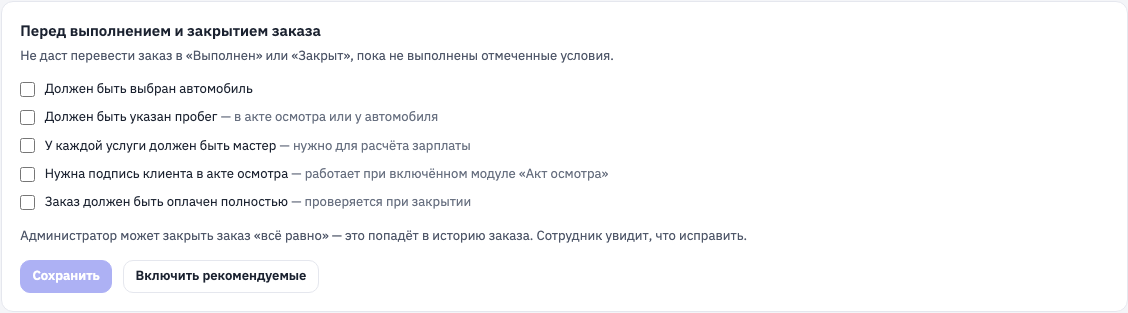
An administrator can require that an order cannot move to Completed or Closed without important details, so that there are no gaps in payroll or the cash desk. All checks are disabled by default, and the order changes status as before.
The following can be checked:
| Check | The order passes if | When |
|---|---|---|
| Vehicle specified | A vehicle is selected for the order | Completed, Closed |
| Mileage specified | The mileage is greater than 0 in the order inspection report or in the vehicle card | Completed, Closed |
| A mechanic is assigned to every service | Each labor line has a mechanic (an order without labor passes) | Completed, Closed |
| Customer signature in the inspection report | The inspection report contains the customer’s signature; this is not checked without the Inspection Report module | Completed, Closed |
| Order fully paid | Payments minus refunds are not less than the order amount; an order for 0 ₽ passes; this is not checked without the Payments module | Closed only |
If anything is incomplete, the status does not change, and the “Cannot close order AS-…” window opens (when completing, “Cannot complete order AS-…”). It contains a list of items: a green check mark means completed, a red cross means not completed, with an explanation of what is wrong (for example, which services have no mechanic).
- Fix next to a red item takes you to where it can be corrected: the vehicle — the Client and vehicle window; mileage — Check-in → Inspection, the Mileage, km field; mechanics — the Labor tab (lines without a mechanic are highlighted); the signature — the signature block in the inspection report; payment — the Payment tab and the Accept payment window. Unsaved form changes are saved before the check.
- Check again rechecks the order without closing the window. When all items are green, the window’s main button becomes Hand over and close (when completing, Complete).
- Close anyway (when completing, Complete anyway) is visible only to the account administrator. You must confirm the action in the same window, and History will record “Closure checks skipped” along with a list of incomplete items. An employee sees a prompt instead of the button: “Ask the administrator to close the order or disable the check in the settings”.
- The window is closed with the Close button, the Esc key, or by clicking outside the window. The same checks apply when changing the status in the order list (there, Fix is replaced with the Open order link).
Hand over and close — a menu item under More in the New, Waiting for the customer, Waiting for parts, and In progress statuses (in the ⋯ menu on mobile devices): it saves the changes, checks the order, and closes it in one action; a prompt next to it says “complete the work first”. History will contain one entry for the status change, and the completion and closure dates will be the same. For an order with the Completed status, the same button is displayed in the header — the vehicle is ready for handover.
Checks do not apply to Declined, Deleted, reversing the status, or Reopen order. They are enabled in Settings → Work orders, in the “Before completing and closing an order” block: select the required conditions and click Save (for details, see Order card).
What happens to inventory
This applies only to parts added to an order using the From inventory button when the Write-off in orders module is enabled:
| From → to | What happens to inventory |
|---|---|
| Between New, Waiting for the customer, Waiting for parts, and In progress | Nothing; the part remains reserved |
| Workflow status → Completed (or directly to Closed) | The stock is written off. If there is not enough stock, the available quantity is written off and a warning is displayed |
| Completed ↔ Closed, Reopen order | Nothing |
| Completed or Closed → workflow status | The written-off part is returned to inventory and reserved again |
| Workflow status → Declined | The reservation is removed, and the stock quantity is unchanged |
| Completed or Closed → Declined | The written-off part is returned to inventory |
| Declined → workflow status | The part is reserved again (if there is insufficient stock, a prompt is displayed) |
| Declined → Completed | The stock is written off, as with normal completion |
| Deleted | As with Declined: the reservation is removed and the written-off part is returned. If the order is restored, the rules for the new status apply |
An order still changes status if inventory is insufficient — there is no restriction. For details, see Parts in an order.
Status logic
- New → Waiting for the customer: the customer has left and needs to be called back.
- Waiting for the customer → In progress: the details have been approved and the mechanic starts work.
- In progress → Waiting for parts: a part is needed, so the work is on hold.
- Waiting for parts → In progress: the part has arrived, so work continues.
- In progress → Completed: the vehicle is ready.
- Completed → Closed: the order has been handed over and cannot be changed.
- Any → Declined: the customer has changed their mind.
Completed and Closed: payroll and profit
Orders with the Completed and Closed statuses are included in the Payroll report and Profit report.
- The Completion date is set on the first transition to Completed or Closed. It determines the payroll period for the order. Closing and reopening the order do not change it.
- If you return the order to a workflow status (for example, In progress), the completion date is reset; a new date is set when the order becomes Completed again.
- The profit report and the KPIs screen also select orders by completion date.
- If something in a completed order is changed and saved (for example, a service is added or the mechanic is changed), the reports are calculated using the latest data.
In printed documents, the “Order closed by” and “Completion date” fields indicate who first moved the order to Completed (or directly to Closed), and when. Reopening and closing the order again do not change them.
Closed order
Closed is the next step after Completed: the work has been handed over, the order can no longer be edited, and the payroll date has been fixed. Below the card header is a yellow banner saying “Order closed — editing blocked…”.
What you can do in a closed order without reopening it:
- switch tabs and view everything in them;
- print and download documents — Print ▾ in the header, PDF, Word, Print on the Documents tab, Download defect report (PDF), Download diagnostic sheet (PDF);
- view photos;
- accept payments and refunds.
The fields and other buttons are greyed out and cannot be clicked, and there is no Save button. You cannot add labor, photos, defects, or a complex. To change anything, click Reopen order in the header (or select a different status in the status list) — the order will return to Completed, and the completion date will be preserved.
What to do instead of deleting an order
Only a user with the “Delete orders” permission can delete an order (move it to Deleted): select Delete in the More ▾ menu on the card (after confirmation, a list of orders will open) or select ⋮ → Delete in the order list row. To restore a deleted order, select another status for it; no deletion permission is required for this. Often, instead of deleting an order, it is better to move it to Declined:
- The customer declined the services.
- The order was created by mistake.
- The services need to be moved to another order.
In any case, the order number remains reserved, and the client’s history will retain a record.
Common issues
- “The order has the ‘Completed’ status, but it is not in the report.” Check the report period. Payroll is calculated using the completion date: if the order was returned to work and completed again, it will be included in the period based on the new date.
- “The status has changed, but the order has not.” If there were changes in the form, they are saved together with the status. Check “Saved ✓” in the header and the History tab.
- “Nothing can be changed in a closed order.” This is intentional. Click Reopen order in the header, make your changes, save them, and click Close order again if necessary. You do not need to reopen the order to print it.
- “The order was completed, but the stock quantity did not change.” Make sure that the part was added using the From inventory button (the row must have the “Written off N of N” label) and that the Write-off in orders module is enabled. Parts marked as “manually” and “from suppliers” are not taken from inventory.
- “The order will not close, and a window with a list of items opens.” Pre-closure checks are enabled. Click Fix next to the red items, then Check again and Hand over and close. If the check is unnecessary, the administrator can disable it in Settings → Work orders.
- “There is no ‘Close anyway’ button.” Only the account administrator can see it. An employee must fix the items or ask the administrator.
- “The payment or signature checks do not work.” Payment is checked only when the status is Closed and the Payments module is enabled; the signature is checked only when the Inspection Report module is enabled.
- “I want to remove the ‘Declined’ status.” Simply select the required status (for example, New again). There are no restrictions on reverse transitions.