Service due and “Haven’t been for a long time”
A client replaced the oil six months ago and forgot, and you forgot about them. The “Service due” module keeps track of such cases for you. You specify once how often the work is repeated (“oil — every 10,000 km or 12 months”), and the program uses work orders to find vehicles that are due for service and clients who have not visited for a long time. You only need to open the list and write or call. No advertising or mailing lists are needed: the list contains clients who have already been serviced by you.
The module is paid: 299 ₽ per employee per month, and works together with “Work orders”. The account administrator enables it in Account → Tariff (for accounts on the former rate, it may already be enabled at no additional charge). An employee needs the “Submodule access” permission for “Service due” in their role (Settings → Roles); the administrator can always see the section. For pricing details, see Enabled modules.
Where to find it
Path: Auto service → Service due (the item immediately below “Deferred jobs”). The menu item has a badge showing how many vehicles are waiting for a call right now (“Due now”). If there is no badge, there is no one to call.
Getting started: work intervals
The list will be populated when an interval is specified for at least one service or service package. Until then, the page is empty: “No intervals yet” with the “Suggest intervals” and “Open services” buttons.
Quick path (administrator). Click “Suggest intervals”. The program will review your services and service packages without intervals and suggest typical values based on their names: “Oil change” — 10,000 km or 12 months, “Brake fluid” — 24 months, “Coolant” — 60,000 km or 36 months, “Timing belt” — 90,000 km or 60 months, “Spark plugs” — 30,000 km or 24 months, “Cabin filter” — 15,000 km or 12 months, “Air conditioning” — 12 months, “Tire fitting” and seasonal tire change — 6 months, “Maintenance” — 15,000 km or 12 months.
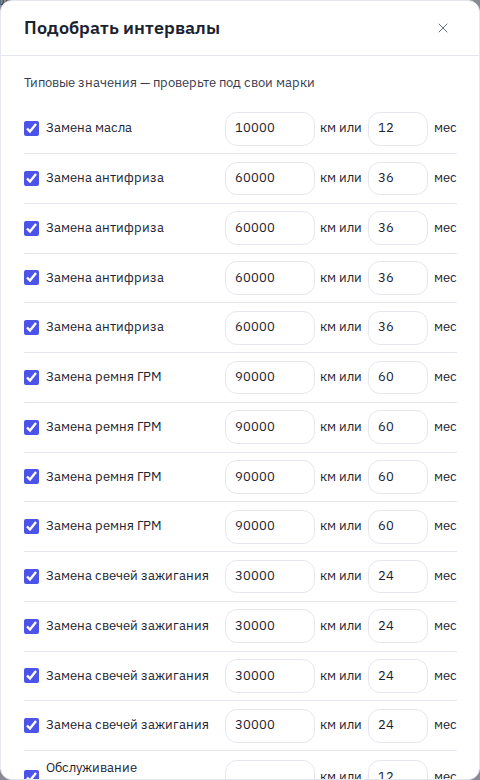
In the dialog, each row has a checkbox and two fields: mileage and lead time. This is only a suggestion: review the figures for your makes and clear the checkboxes for anything unnecessary. Click “Save selected” — only the selected items will be saved. The same step is available in the “Start work” card on the Home page: “Specify work intervals”.
Manually. Open Reference data → Services, click a service, and find the “Repeat: every … km or … months” row in the dialog. For a service package, go to Reference data → Service packages and open the package dialog. Rules:
- Specify the mileage, lead time, or both values. The condition that comes first triggers the reminder.
- Mileage — from 500 to 500,000 km, lead time — from 1 to 120 months. If both fields are empty, the work is not periodic, and we will not send reminders about it.
- In the service list, periodic work has an icon like “↻ 10,000 km / 12 months”.
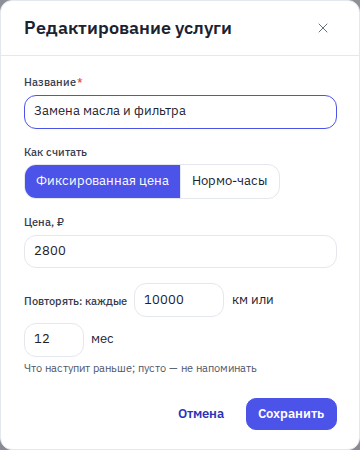
The field appears in the service and service package dialogs only when the module is enabled and you have access to it.
How the program calculates when service is due
The program calculates this automatically; you do not need to enter anything. The core is completed orders: an order with the “Completed” or “Closed” status containing work with an interval is a “visit”. Work is considered done if the order contains a line for that service or a line from an applied service package with the same interval (service packages are counted in orders where they were applied after the module was enabled; in earlier orders, only services are counted).
Based on the last visit for this work, the program determines the expected date:
- By lead time. Visit date plus the lead time: the oil was changed on 10 March, the interval is 12 months — service is due on 10 March next year.
- By mileage. Mileage at the visit plus the interval, for example 48,000 + 10,000 = 58,000 km. The program calculates the date using the vehicle’s average mileage: how many kilometres it covers per month. If it is 1,400 km, it will take about seven months to reach 58,000 km.
- If both values are specified, the one that comes first is used.
The visit mileage comes from the order’s Inspection report (the mileage field; the “Inspection report” module is required). If there is no report, it comes from the vehicle card when the mileage there is higher than at the previous visit. Therefore, the service advisor should record the mileage during check-in: without it, the forecast in kilometres is inaccurate. Average mileage appears when the vehicle has two visits with recorded mileage, with at least 60 days between them.
What the “≈” sign means. If the interval is specified only in kilometres and there is not yet an average mileage (too few visits), the program estimates based on the annual mileage from the settings (15,000 km per year by default). Such a date is marked with “≈” and the label “estimated at 15,000 km/year”: this is a guideline, not an exact lead time. After the second visit with recorded mileage, the estimate will be replaced with a calculation for that vehicle. The label “by lead time” without “≈” means an exact date in months.
If a vehicle has work with a lead time or mileage in its recommendations, it will also appear in the list with its own expected date.
Statuses
| Status | When | Dot colour |
|---|---|---|
| overdue by N days | the expected date has passed, but not more than 180 days ago | red |
| due in N days or due today | the expected date is within the next 30 days | orange |
| planned | the date is more than 30 days away | grey |
| not updated | overdue for more than 180 days: the vehicle has most likely gone to another service provider | grey |
Does the vehicle have several periodic jobs? The list contains one row: the nearest job and the note “· 2 more”. All the vehicle’s jobs with dates are visible in the vehicle card (below).
“Service due” tab
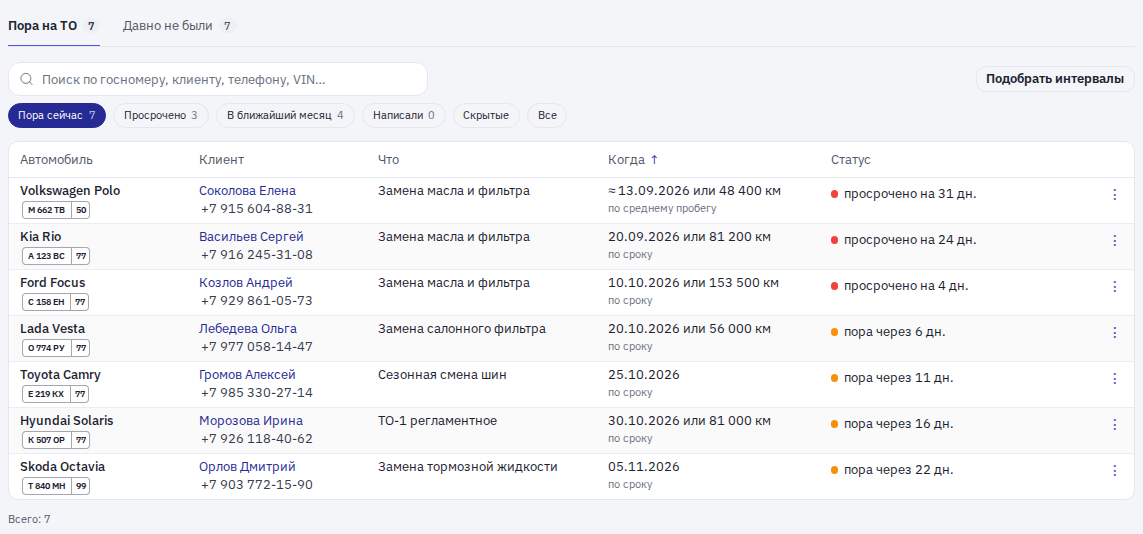
Columns: Vehicle (make, model, license plate), Client (name and phone), What (nearest job), When (date and/or mileage, with the hint “by lead time”, “by average mileage”, “estimated at … km/year” below it), and Status. Sort by the “When” column: overdue items first. On a phone, each vehicle is displayed as a card.
Chips above the list, with numbers:
- Due now (default): overdue and due within the next 30 days. Excluding those whom you have already contacted, hidden, and those with an open order;
- Overdue and Within the next month — the same vehicles listed separately;
- Contacted — those you contacted within the last 14 days;
- Hidden — postponed and those you decided not to remind anymore;
- All — any vehicles with a forecast: “Planned” and “Not updated”, as well as vehicles with an open order (their status is “· In an order AS-…”).
Search searches by license plate, client name, phone number, and VIN. The number on the menu chip matches the number on the “Due now” chip.
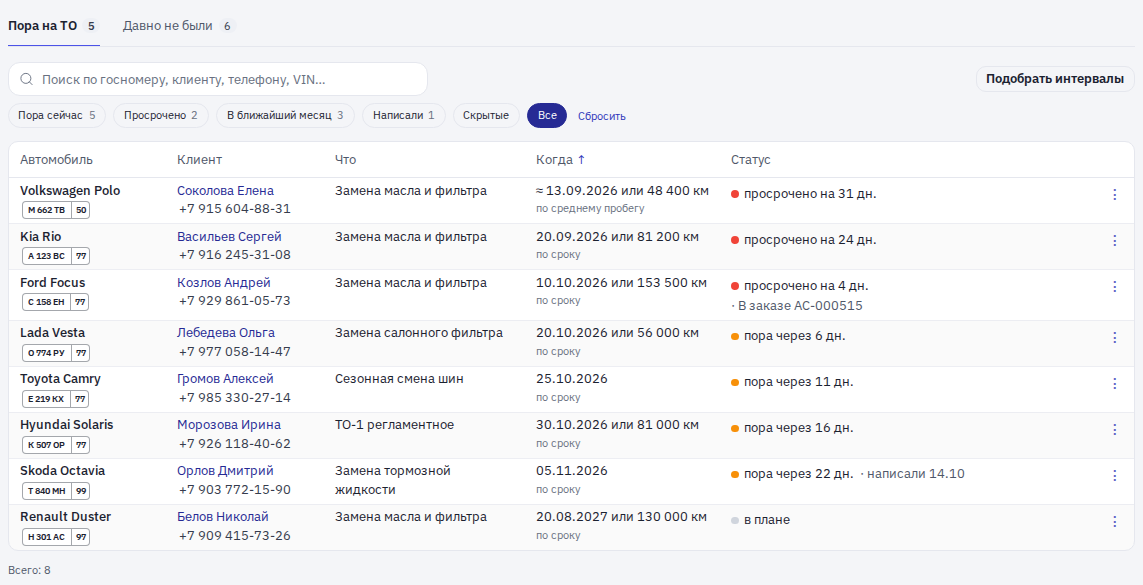
A vehicle with an open order (statuses “New”, “Waiting for the customer”, “Waiting for parts”, “In progress”) is not shown in “Due now”: the client is already with you. When the order is closed, the forecast will update automatically.
What you can do with a row
- Contact opens a message window for the client with a ready-made “Service due” template: the client’s name, vehicle, license plate, work, and expected date will be filled in (“Hello, Ivan! Your Kia Rio А123ВС77 is due for service-1 — approximately 20.10.2026. Would you like to book a convenient time?”). You can edit the text before sending it, and you can change the template in Settings → Client messages. Choose WhatsApp, Telegram, or SMS: you will send the message yourself from your phone or computer (with the Client SMS reminders module enabled, there is also “SMS via gateway”: the message will be sent from the server). The Client messages module is required; without it, the row’s main button is Call. If the client has no phone number, the button is disabled.
- After you select a channel, the row moves to the “Contacted” chip for 14 days and receives the “contacted 12.10” mark. If the client does not arrive within two weeks, the row returns to “Due now”. If the client arrives and the order is completed, the mark is removed automatically.
- Call dials the number (on a mobile phone, it starts the call immediately). Clicking the phone number or license plate copies it.
- “⋮” menu:
- Postpone for 1 month and Postpone for 3 months — remove the row temporarily; it will then return automatically;
- Do not remind — remove it permanently (the row moves to “Hidden”, with the text “do not remind”);
- Restore — return the hidden row to the list;
- Open client — the client’s item card, with the vehicle immediately expanded on the “History” tab.
- Clicking a row does the same as Open client.
A new client visit (a completed order) automatically removes all marks: “contacted”, “postponed”, and “do not remind”. The list is clear again.
“Not seen for a long time” tab
This section contains clients whose last visit was long ago, who have no open order, and whom you have not hidden. These are the clients who quietly drifted away: they cannot be caught by intervals, but bringing them back costs less than finding a new one.
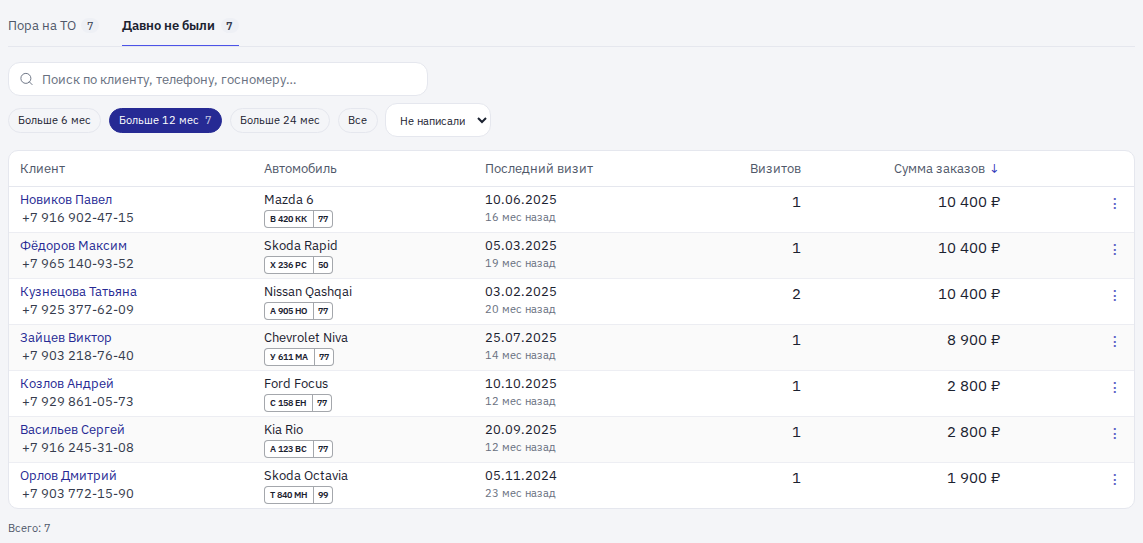
The same client may appear in both lists: their vehicle is due for service, but they themselves have not visited for a long time. Columns: Client, Vehicle (first vehicle and “N more”), Last visit (date and “14 months ago”), Visits, and Order amount. By default, the highest-value clients (by amount) are shown first, and you can switch the sorting to visit date.
Threshold chips: “More than 6 months”, “More than 12 months” (default threshold), “More than 24 months”, and “All”. Next to them is the “Mark” dropdown: Not contacted / Contacted / Hidden. Search works by client, phone number, and license plate.
Clients who have not visited for more than three years are visible only under “All”: they have usually left for good, so this tail does not make it into the active chips.
The actions are the same: Contact (the “Not seen for a long time” template invites the client to check their vehicle and book a visit), Call, Postpone, Do not remind, Open client. “Contacted” is also valid for 14 days.
Forecast in item cards
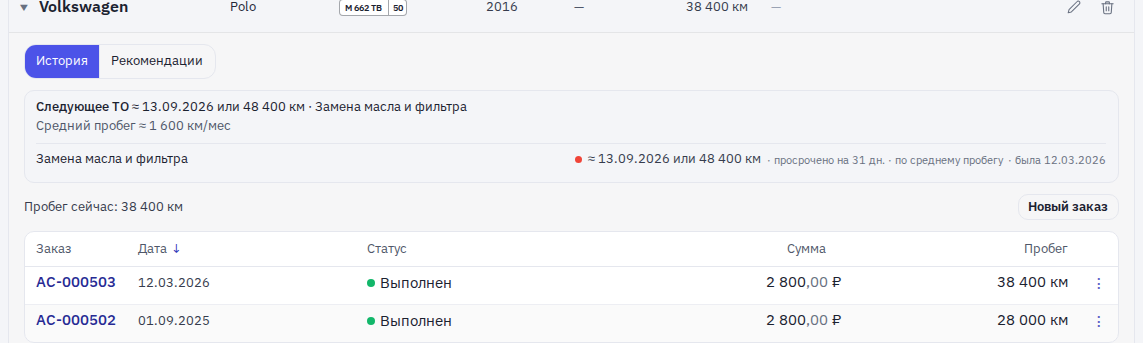
- Client item card → Vehicles → vehicle row → “History”. At the top, there is “Next service ≈ 20.06.2027 or 58,000 km · Oil change” and “Average mileage ≈ 1,400 km/month” (or “not yet known — two visits with mileage are required”). Click the block: all periodic services for the vehicle will be expanded, with dates, statuses, and “was 13.03.2026”. The block is not displayed if the vehicle has not yet had any periodic services.
- Order → right column → “Service due” block. When a vehicle is selected in the order, up to three services that are due are displayed below it: “Due: Oil change — was 13 months ago”. The “Add to order” button adds the service to the order at the price from the price list, while a package is applied as a whole (the package does not have the button in an unsaved order: save the order first). A service that is already in the order disappears from the block. A closed order has no buttons.
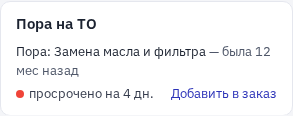
This is how a reminder turns into a sale: the client arrives, the service advisor sees what is missing, and makes an offer.
Settings
Path: Settings → Service due (administrator only).
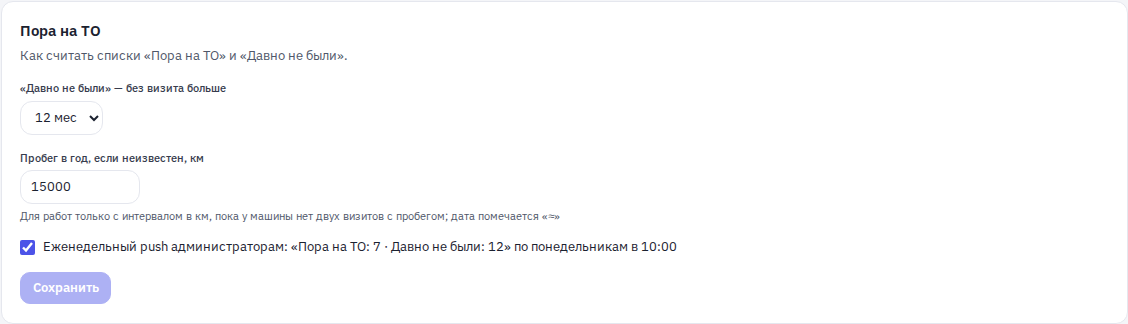
- “Not seen for a long time” — no visit for more than: 6, 12, 18, or 24 months. The default is 12. This is the default chip threshold on the “Not seen for a long time” tab.
- Annual mileage if unknown, km: from 5,000 to 100,000, with a default of 15,000. Required to estimate the “≈” values for vehicles with too few visits with mileage. Set a higher value for a taxi fleet, and you can set a lower value for an urban vehicle.
- Weekly push to administrators: on Mondays at 10:00 Moscow time.
Save using the “Save” button. After you change the threshold or mileage, the lists are recalculated automatically.
Monday pushes
The Account administrator receives an in-app notification every Monday at around 10:00 (MSK): “Service due: 7 · Haven’t been for a long time: 12”. It contains numbers only: no names, phone numbers, or license plates, because the text is visible on the lock screen. Tap the notification: the “Service due” page will open. If both numbers are zero, no push notification is sent.
You need the app for Android or iPhone. The personal switch is located under: Settings → Notifications, “Push notifications” card, “Service due and haven’t been for a long time” row. The switch for the entire account is the weekly push checkbox under Settings → Service due.
What Employees Can See
- Employees with the “Submodule access” permission for “Service due” can see the section, badge, lists, and blocks in the order and vehicle item card. The lists include client phone numbers.
- The same employees can see the “Repeat” field in the service and package window, but only those with access to services and packages can edit the reference data.
- Only the Account administrator can see “Select intervals” and the settings tab.
- When the balance is exhausted and the account is in view-only mode, the lists are visible, but “Select intervals”, “Snooze”, and “Do not remind” are unavailable.
FAQ
- “There is no ‘Service due’ item in the menu”. The module is disabled (Account → Tariff, enabled by the administrator), or your role does not have the “Submodule access” permission for “Service due” (Settings → Roles). The module only works together with “Work orders”.
- “The list is empty”. Check in order: whether an interval is set for at least one service (Reference data → Services, “Repeat” field, or the “Select intervals” button); whether vehicles have completed orders with this service (the order must be “Completed” or “Closed”); and whether the “Due now” chip is selected when everything is “Scheduled” (open “All”). Immediately after enabling the module or changing the interval, the calculation may take up to one minute.
- “The vehicle is not in the list”. Open the “All” chip and find it using search. Possible reasons: it has no order with periodic work; an order is currently open; you hid or snoozed it; the expected date is far in the future (“Scheduled”) or has long passed (“Not updated”); or you contacted the client, and the row is under the “Contacted” chip.
- “The service is in the order, but the vehicle did not appear”. The order is not yet “Completed”: the calculation is based on completed and closed orders. Alternatively, the work was entered in the order without linking it to a service from the reference data (entered manually), so the application cannot recognize that row. Select a service from the reference data or a package.
- “Where does the date with the ≈ icon come from?”. The vehicle has too few visits with mileage, so the application estimates the date based on annual mileage from Settings → Service due. Enter the mileage in the Inspection report during check-in. After two visits with mileage, the date will become more accurate.
- “The date is incorrect; the vehicle has been travelling more (less) for a long time”. Average mileage is calculated based on visits. Check the mileage in the Inspection reports: if a figure is incorrect, the calculation will shift. Correct the mileage in the report for the relevant order.
- “Marked ‘Contacted’ by mistake”. The row will return to “Due now” automatically after 14 days. If the client arrives and the order is completed, the mark will be removed earlier.
- “The client does not want reminders”. In the “⋮” menu, select “Do not remind”: the row will move to “Hidden”. You can restore it in the same place: “Restore”.
- “There is no ‘Contact’ button”. The “Messages to client” module is not enabled, or the role does not have permission to access it. You can still use “Call”. If the button is greyed out, the client has no phone number.
- “The weekly push notification is not arriving”. A push notification is not sent if both numbers are zero, if the “Service due and haven’t been for a long time” row is disabled under Settings → Notifications, if the checkbox is cleared under Settings → Service due, or if the app is not installed (what to do).
- “I want automatic mailing lists for clients”. The list itself does not send anything: it indicates whom to contact, while you send the message using the button. Automatic SMS reminders for “Service due” are provided by the separate SMS reminders for clients module: the message is sent the specified number of days before the service due date, only to clients marked “Agrees to service due reminders” in the “Contact details” block of the client item card.