SMS reminders for clients
A client forgot about an appointment, and you wasted an hour with an empty Service bay. Or the vehicle has been Ready for a long time, but the client does not know. The “SMS reminders for clients” module sends such SMS messages automatically: on the day before the appointment, when the Order is Completed, and when the Vehicle is due for service. The Service advisor does not need to click anything.
Messages are sent through your contract with an SMS provider (SMS.ru, SMSC.ru, or SMS Aero). You pay the provider for SMS messages according to its Rate. We do not add a markup, sell SMS messages, or see your Money balance: the System only displays the balance reported by the provider.
The module is paid: 299 ₽ per Employee per Month. It works together with “Clients”; see Enabled modules. It is Disabled by default: the Account administrator enables it in Account → Tariff. No SMS messages will be sent until the gateway is connected.
Getting started: five steps
- Enter into a contract with a provider. Obtain an API Key in your account, and agree on an sender name (Latin letters and digits, up to 11 characters) and SMS texts: without an approved Template, an SMS message may be sent under the advertising Rate or may not be sent at all.
- Settings → SMS reminders → Connection: select the provider, enter the Key, sender name, and click “Save”.
- Click “Check”. If everything is correct, “Key accepted · balance N ₽” will appear at the top, and a green dot with “Connected · balance N ₽” will appear to the right of the heading.
- Optionally, send yourself a test SMS message: the “Test SMS to number” field and the “Send test” button (no more than 5 per day).
- Settings → Reminders, “To clients by SMS” section: enable the required Rules. See below for more Details.
The “Getting started” card on the Home page offers the same Path: the “Connect SMS reminders” step.
What to enter for each provider
| Provider | What is required |
|---|---|
| SMS.ru | API Key from the account (the “API Key” field) |
| SMSC.ru | “SMSC login” and the API password in the “API Key” field |
| SMS Aero | “SMS Aero account email” and the API Key in the “API Key” field |
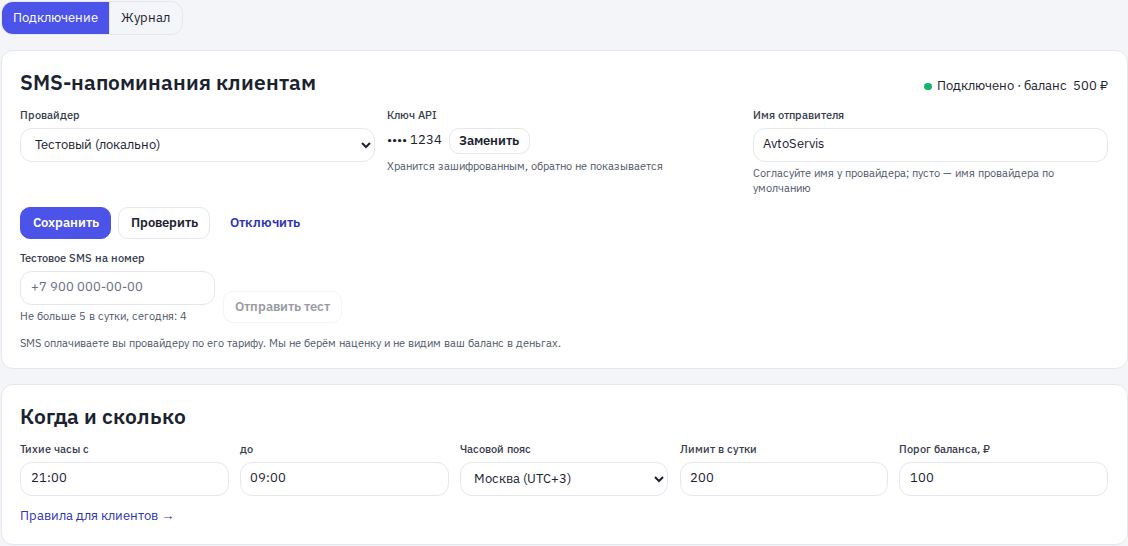
In the screenshot, the selected provider is “Test (local)”: it is needed for testing and is available only in the test version of the System; no SMS messages are sent in this mode. The production version has three real providers in the list.
The Key is stored encrypted and is not displayed again: after saving, only the last 4 characters are visible (“•••• 1234”), along with the “Replace” button. If the Key has changed, click “Replace”, enter a new one, save it, and click “Check” again. The “Disable” button erases the Key immediately, and queued SMS messages will not be sent afterward. If the red message “Encryption is not configured — contact Support” appears above the Form, write to us in chat: the Key cannot be saved until encryption is configured on the server.
If the provider stops accepting the Key or runs out of Money in its Account, the red message “SMS messages are not being sent: …” will appear in the Settings, and the Administrator will receive a Push notification. Pending SMS messages are not lost: they remain in the queue until their validity Period expires, and are sent as soon as you top up the Account or replace the Key.
Rules: what is sent and when
Rules are enabled in Settings → Reminders, “To clients by SMS” section. If the Account does not have the “Reminders” module, the same section is located directly on the Settings → SMS reminders page below the quiet hours. While the gateway is not connected and checked, the Rules are greyed out, with the “Connect the SMS gateway” link above them. All Rules are Disabled by default.
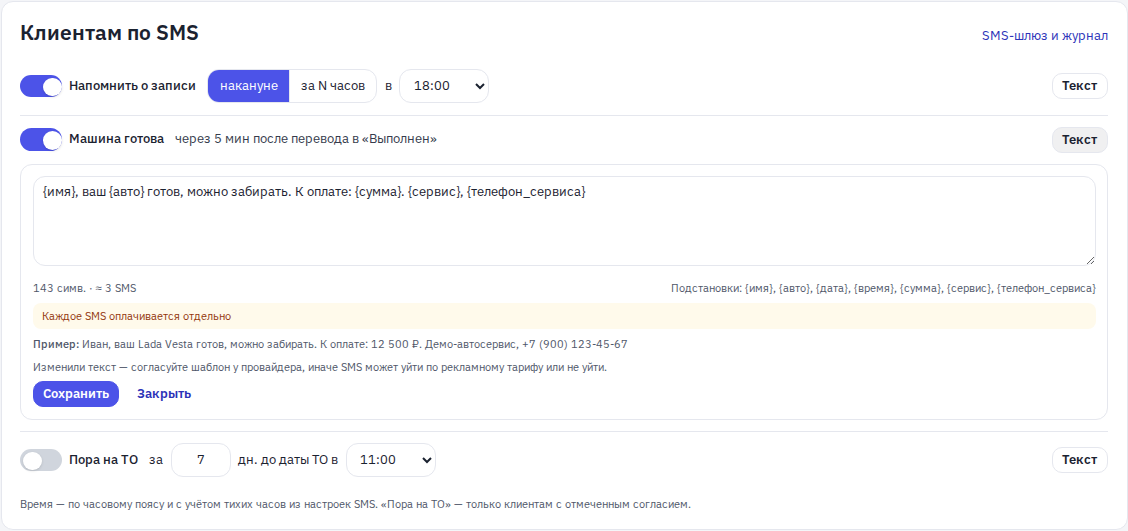
| Rule | When the SMS is sent |
|---|---|
| Remind about an appointment | the day before at the selected Time (18:00 by default), or N hours before the Visit (from 1 to 24). Orders with the “New”, “Waiting for the customer”, and “Waiting for parts” Statuses and a planned Date, Service bay bookings, and confirmed Online booking Requests are included. If the client was booked less than one evening before the Visit, the SMS is sent Immediately if more than three hours remain before the Visit. If the appointment was rescheduled or cancelled, no SMS is sent for the old Date |
| Vehicle Ready | 5 minutes after the Order is moved to the “Completed” Status. If you clicked “Completed” by mistake during those minutes and restored the Status, no SMS will be sent |
| Service due | N Days (from 1 to 30, 7 by default) before the calculated service due Date at the selected Time. The “Service due” module is required, and SMS messages are sent only to clients who have given marked consent (see below) |
| Bonuses expire | the number of Days before the Bonuses expire specified in “Remind the client in, days” under Clients → Loyalty → Bonuses: rules (sent by Day). The “Loyalty” module is required, and SMS messages are sent only to clients who have given marked consent (see below). Default text: “{name}, {bonuses} expire on {date}: {bonuses}. Spend them in time at {service}, {service_phone}” |
The Time for all Rules is calculated based on the time zone from the SMS Settings (Moscow by default) and always takes quiet hours into account.
Next to each Rule is the “Text” button: a Template editor will open. Below the field, you can see the counter “N characters · ≈ M SMS messages” (one SMS message contains 70 characters in Cyrillic; a long message contains 67 characters per part, and each part is paid for separately), followed by an Example of ready text. Rules:
- up to 300 characters, no more than five SMS messages per message;
- the {service} substitution is mandatory: the client must understand who is writing;
- the {name}, {vehicle}, {date}, {time}, {amount}, {service}, {service_phone} substitutions are available; License plates, surnames, Order numbers, and Links are not included in SMS messages;
- with the “Loyalty” module, {bonuses} is also available (the amount accrued for the Order in an SMS, or the amount that will expire in “Bonuses expire”) and {bonus_balance} (the number of Bonuses in the client’s Account). If there are no accruals or the module is Disabled, the substitution will be empty: write the text so that it can be read without it;
- “Restore original” restores the default text.
The text has been changed: have it approved by the provider; otherwise, the SMS may be sent using a different Rate or may not be sent at all.
When an SMS is not sent
The SMS is placed in a queue and passes checks before sending. If one check is not passed, the Row in the Log receives the «Skipped» Status and a Reason:
| Reason | What it means |
|---|---|
| quiet hours | it is currently between 21:00 and 09:00 (or your specified hours). The SMS is moved to the morning if the Lead time allows; otherwise, it is skipped |
| stop list | the Client has declined SMS messages (see below) |
| the number is not a mobile number / there is no phone number | SMS messages are sent only to Russian mobile numbers |
| Limit | the daily Account Limit has been exhausted, or 3 automatic SMS messages have already been sent to this number during the day |
| already sent to this number today | the Rule does not send the same number twice a day |
| the Order Status has changed, the appointment has been rescheduled or cancelled | the Notification is no longer relevant |
| the validity period has expired | the SMS is no longer relevant (for example, the Visit has passed) |
| the gateway is not connected, the Rule or Module is disabled, View mode | something is disabled in the System |
| the provider rejected the SMS / is not responding | an error on the provider's side |
A network failure or a 5xx error does not result in the SMS being lost: the System will retry sending after 1, 5, and 15 minutes. If it is not possible to determine exactly whether the SMS was sent (the process was interrupted at the moment of sending), the Row receives the Status «Error: sending interrupted», with no retries, so that the Client does not receive two SMS messages.
Quiet hours, Limits, and Balance
The «When and how many» block under the gateway Settings:
- Quiet hours from / to: 21:00–09:00 by default; SMS messages are not sent during this time. The Start and End times must not be the same.
- Time zone: your Service's time zone, from Kaliningrad to Kamchatka.
- Limit per day: the number of SMS messages per Account per day (200 by default, no more than 1000). Once the Limit has been exhausted, the Administrator receives a push notification, while the remaining SMS messages wait until the next day.
- Balance threshold, ₽: when the balance with the provider falls below this value, the Administrator receives the push notification «SMS gateway balance is below the threshold» (100 ₽ by default).
These push notifications are sent to the Administrator together with the other Notifications and can only be disabled using the main switch in Settings → Notifications.
Log
You can view what was sent and to whom in two ways: Settings → SMS reminders → Log (Administrator), or the Clients → SMS to clients menu item (Employees with the «Log and SMS sending» Permission for this Module, which is assigned in Settings → Roles).
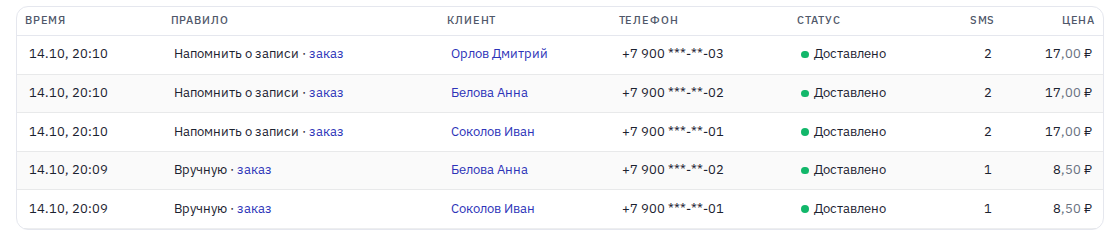
The table shows the Time, Rule (for an SMS related to an Order, the Order Link), Client, Phone, Status, number of SMS messages, and Price. The «From» and «To», «Status», and «Rule» filters are at the top, and the «For the month: N SMS» counter is on the right. On a mobile phone, each SMS message is displayed as a card.
Statuses: «In queue», «Sending», «Sent», «Delivered», «Not delivered», «Skipped» (with a Reason), and «Error». The System verifies delivery with the provider: one minute, ten minutes, and one hour after sending, then once an hour for 24 hours. The Price appears if the provider reports it.
The phone number in the Log is hidden: «+7 900 *--01». The full number and SMS text are erased 30 days after the final Status, and the Row itself is deleted after 180 days. The test SMS number is not saved at all.
In the Client Item card: stop list and consent
In the Client Item card, the «Communication» block (visible when the Module is Enabled and you have the SMS or Clients Permission):

- «SMS reminders» switch. When disabled, both of the Client's numbers are added to the stop list, and the text «Number is on the stop list — SMS messages are not sent» appears below the switch. The stop list is respected by all automatic Rules, as well as by manual and test sending. If the Client asks you not to send messages anymore, disable the switch, and the issue is resolved. You can restore the setting using the same switch.
- «Consented to service reminders» checkbox. The «Remind about an appointment» and «The Vehicle is ready» messages are service messages: they are sent by default. The «Service due» and «Bonuses expire» reminders are closer to an informational newsletter, so they are sent only after being marked. The System remembers the Date and who checked the box («Marked 14.10.2026 · Ivan Petrov»). Mark it only when the Client has genuinely consented, either verbally or in the questionnaire.
- «Last SMS» Row: what was sent to the Client and when.
A Client who booked through the online booking widget sees the line «We will send an SMS reminder the day before the Visit» on the final «Thank you!» screen, if this Rule is Enabled for you.
Manual SMS
If you need to contact the Client right now, open the Order and click «Contact client» (Client Messages). In addition to WhatsApp, Telegram, and SMS «from the phone», a «SMS via gateway» button will appear in the window: the SMS will be sent by the server on behalf of your Service, and this works from a Computer as well; there is no need to open anything on the phone. The button is available if the Module is Enabled, the gateway has been tested, and you have the «Log and SMS sending» Permission.
After sending, you will see «SMS sent», a «Manually» Row will appear in the Log, and an «SMS to client» entry will appear in the Order History (without the text and number). Manual sending has the following specifics:
- quiet hours do not delay SMS messages, but the System warns you: «SMS sent — it is currently quiet hours for the Client»;
- the stop list, mobile number, and Limits are checked. If the number is on the stop list, you will see «Number is on the stop list», and the SMS will not be sent;
- no more than 30 SMS messages per hour can be sent per Employee;
- the number can only be taken from the Order, Request, booking, or Client Item card; an arbitrary number cannot be entered.
What Employees can see
- Only the Account administrator can view and change the gateway, Rule, Text, and quiet hours Settings.
- Employees with the «Log and SMS sending» Permission (Settings → Roles) can view the Log, send SMS messages manually, and manage the stop list in the Client Item card. The «Consented to service reminders» checkbox can also be marked by anyone with Access to Clients.
- When the Account Balance is exhausted and View mode is Enabled, automatic SMS messages are not sent, and the Save buttons are unavailable.
FAQ
- “There is no ‘SMS reminders’ item in the settings”. The Module is disabled. The Administrator enables it in Account → Tariff (the “Clients” Module is required).
- “The Rules are greyed out”. The gateway is not connected or has not been checked: Settings → SMS reminders, “Save”, and then “Check”. The greyed-out “Module required …” line means that the Module required by the Rule is not enabled (for example, “Service due”).
- “When I click ‘Check’: Key is not accepted”. Copy the key from the provider’s dashboard again without spaces; for SMSC and SMS Aero, check the login or e-mail. Click “Replace”, enter the key, and save.
- “Insufficient funds with the provider”. Top up the account in the provider’s dashboard and click “Check”: the queue will resume sending.
- “I received an SMS from the wrong sender name”. The sender name must be approved by the provider. If there is none, the provider uses its own. Specify the approved name in “Sender name”.
- “SMS skipped: quiet hours”. The appointment reminder falls at night and cannot be moved to the morning because the visit is earlier. Adjust the quiet hours or the Rule time.
- “Skipped in the Log: stop list”. The Client disabled SMS in the Item card (“Communication → SMS reminders”), or an Employee did it. It can be restored there.
- “‘Service due’ SMS are not being sent”. Check that the “Service due” Module is enabled, the Client is marked as “Agreed to service reminders”, the Client is not on the stop list, and the Rule is enabled. See the list of Vehicles that are due for service in Service due.
- “‘Bonuses expire’ SMS are not being sent”. Check that the “Loyalty” Module is enabled, “Bonuses expire” is selected in the bonus Rules, the Client is marked as “Agreed to service reminders”, the Client is not on the stop list, and the Rule is enabled. If the Client managed to spend the Bonuses before the Date, the SMS will not be sent.
- “The Client received two SMS messages”. Rules do not send the same number twice a day. One SMS was probably automatic and the other manual (“Manually” in the Log).
- “There is no ‘SMS via gateway’ button”. The gateway is not connected or has not been checked, the Module is not enabled, the Role does not have the “Log and SMS sending” Permission, or the window contains no Phone number.
- “Is this a mass mailing?”. No. The Module sends service reminders for specific Orders and bookings, not mass mailings.
- “Can I specify multiple gateways?”. No, there is one gateway per Account. You can change the Provider at any time: select another one, enter its key, and check it.