Workbench on the Home Page
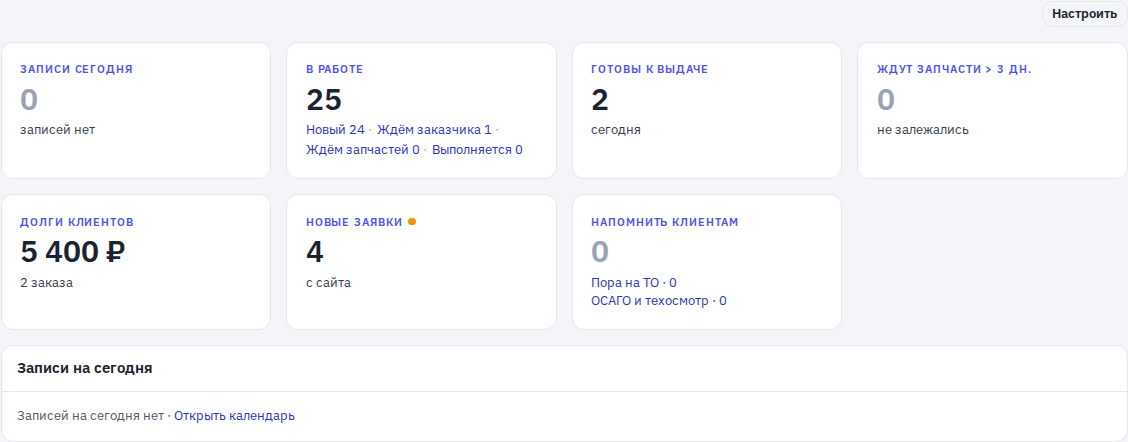
Home is your workbench for today: how many bookings are at the service bays, how many vehicles are being worked on and are ready for handover, who is stuck waiting for parts, and which debts, tasks, and requests are pending. Each tile is a link: click it to open a list with the same filter used to calculate the number. No setup is required — the workbench uses the data you already maintain in work orders, planning, tasks, and online booking.
Where to find it
Menu path: Home. This is the first screen after signing in. At the top is the date and the name of the auto service (“Wednesday, 14 October · My Auto Service”); below are the tiles and a list of today's bookings.
In the Home header is the “New order” button: you can create an order in one click without going to “Work orders”. On a mobile phone, the same button is in the bottom bar (between “Home” and “More”). The button is available to users who have access to work orders; if the account balance is exhausted, it is disabled.
While you are completing “Getting started” and the account does not yet contain any data, the workbench is not available on the Home Page — a checklist card is displayed at the top. As soon as the first data appears (for example, a work order), the workbench is displayed below the card and remains there after setup is complete.
What the tiles show
The tiles are arranged in a fixed order; tiles you do not have access to are simply not displayed.
| Tile | What it counts | Where it leads |
|---|---|---|
| In progress | Orders with the “New”, “Waiting for customer”, “Waiting for parts”, and “In progress” statuses. Below is a breakdown by status, and each status is also a link. | Work orders, “In progress” filter; status — list for that status |
| Ready for handover | Completed orders that have not yet been closed. The label is “waiting the longest for N days”: how long the oldest one has been waiting. | Work orders “Completed”, oldest first |
| Waiting for parts > N days | Orders with the “Waiting for parts” status for more than N days (3 by default). The label is “waiting the longest for N days”. | Work orders “Waiting for parts” for more than N days, oldest first |
| Client debts | The amount and number of “Completed” and “Closed” orders that have not been paid in full. | Work orders with the “With debt” filter |
| Tasks | Overdue tasks; below is the number of tasks for today. For an administrator — overdue across the entire team; for an employee — their own tasks (where they are the assignee or author); “for today” is calculated based on your tasks. | Tasks: “Overdue”, or “Today” if there are no overdue tasks |
| New requests | Unprocessed online booking requests from your website. | Requests with the “New” status |
| Remind clients | How many clients are due for service (“Service due”), and how many vehicles have an expiring OSAGO or inspection. | List “Service due” or “OSAGO and inspection” |
If the number is zero, the tile is grey and unobtrusive. There is no red highlighting or flashing: a dot next to the name appears only where action is needed — for “Waiting for parts”, overdue “Tasks”, and “New requests” when the number is greater than zero.
The number on the tile and the number in the opened list always match: they are calculated using the same rule. The list opens from the link as a “List” and shows which filter is applied — for example, “More than 3 days ✕” or “In progress ✕”. Click the cross to remove the filter and view all orders.
Today's bookings
Below the tiles is a list of the nearest bookings by time: time, service bay, license plate, vehicle, client, order number, and status. Instead of an order, a booking displays the “Booking” label, the client's name, and a comment. Past bookings are grey, and the booking currently in progress is marked “now”. The list contains up to 8 rows; the “All bookings (N) →” link leads to today's service bay calendar.
There is no separate “Today's bookings” tile on the workbench — the day's schedule is shown by this list, so the same information is not displayed side by side twice. When there are no bookings, the list is replaced by “No bookings for today”, the “Open calendar” link, and the “Check in vehicle” button: it opens the new order form (for users who have access to work orders).
The list is available only if Service bay planning is enabled and you have access to it.
Who can see what
The workbench does not have a separate permission: a tile is displayed if its module is enabled for the account and you have access to it. The account administrator sees all tiles for enabled modules.
| Tile | Required module | Employee permission required |
|---|---|---|
| Booking list | Service bay planning | “Submodule access” |
| In progress, Ready for handover, Waiting for parts | Work orders | “Submodule access” |
| Client debts | Order payments | “Accept payments” |
| Tasks | Tasks | “Submodule access” |
| New requests | Online booking (widget) | “Submodule access” |
| Remind clients | Service due and/or OSAGO and inspection | “Submodule access” for the required module |
Therefore, a mechanic with access only to work orders and tasks sees “In progress”, “Ready for handover”, “Waiting for parts”, and their tasks — but no money, requests, or bookings. Permissions are granted by an administrator in Roles. Only users with access to planning can see client names and license plates in the booking list; phone numbers are not displayed on the workbench.
How to configure the workbench
The “Configure” button is available only to the account administrator: on the right above the tiles on a desktop, and in the “⋯” menu on a mobile phone.
- Click “Configure” — the “Workbench” drawer opens on the right.
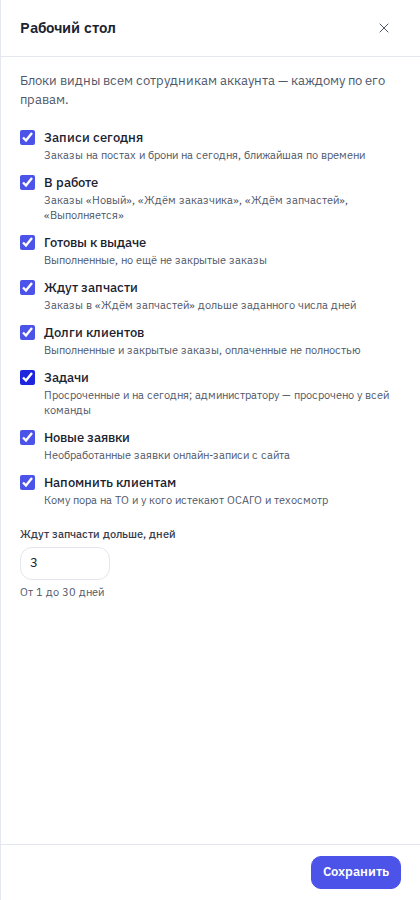
- Clear the checkboxes next to tiles you do not need. Each tile has a description of what it counts. Clearing the “Today's bookings” checkbox disables the list of today's bookings. You cannot hide all tiles at once — the error “Leave at least one block” will be displayed.
- In the “Waiting for parts more than, days” field, set a deadline from 1 to 30. For example, if you enter 5, the tile will display orders waiting for parts for more than five days, and its name will become “Waiting for parts > 5 days”.
- Click “Save” (or
Ctrl+S) — “Saved ✓” will appear and the workbench will refresh.
The setting applies to the entire account: tiles hidden by the administrator disappear for all employees. The server does not calculate hidden tiles, so the workbench does not slow down.
Updating the numbers
The figures are retrieved when the Home page is opened and refresh automatically every 2 minutes while the tab remains open, and immediately upon returning to the tab. There is no Refresh button. If the dashboard cannot be loaded, the message “Failed to load the dashboard” with a “Retry” button will appear below it.
Enable and disable
The dashboard is a free “Dashboard” module in the “Auto service” group: it comes with “Work orders” and is enabled for everyone by default. The Account administrator enables and disables it independently: Account → Tariff. Once disabled, the Home page returns to its previous view (the welcome message and the “Enabled modules” item card). For more information, see Enabled modules.
When the balance is exhausted and the account is in view-only mode, the dashboard is visible and the tiles can be opened, but “Configure” is unavailable.
FAQ
- There is no dashboard on the Home page. Check the following in order: the “Dashboard” module is enabled (Account → Tariff); you have access to at least one tile; the administrator has not hidden all blocks. If you are only configuring the account and there is no data yet, the dashboard will appear as soon as the data becomes available.
- There is no “Client debts” tile (or “New requests”, “Tasks”). An enabled module and the corresponding permission are required: for debts, “Accept payments” under “Order payments”; for the others, “Submodule access”. Alternatively, the administrator has hidden the tile. Contact the administrator.
- I am the administrator, but there is no tile. Either the source module is disabled for the account (Account → Tariff), or the tile is hidden under “Configure”.
- There is no “Configure” button. Only the Account administrator can see it. If you are an employee, contact the administrator.
- The figure on the “Waiting for parts” tile is lower than the number of orders in “Waiting for parts”. The tile counts only those waiting longer than the specified Lead time (3 days by default). The Lead time can be changed under “Configure”.
- What status is “Ready for handover”? Orders with the “Completed” status: the work is finished, but the order has not yet been “Closed”. Once you close the order, it will disappear from the tile.
- Debts do not match the “KPIs”. The rule is the same: “Completed” and “Closed” with an unpaid balance; compare the figures at a single point in time, not over a Period.
- The appointment times are incorrect. Times are shown in Moscow time, as in the calendar for Posts.
- How do I restore the previous Home page view? Disable the “Dashboard” module under Account → Tariff.