Documents for clients via e-mail
Legal entities, sole proprietors, and vehicle fleets pay by invoice and close repairs with a completion certificate, so the client's accounting department asks you to “send the invoice and certificate by email.” The “Documents by e-mail” module does this with one button in an order: you select the required documents, the address is taken from the client's item card, the email text is ready, and the PDF files are attached automatically. You do not need to connect your own mailbox: the email is sent from the AutoServiceOnline address on behalf of your service (“Motor via AutoServiceOnline”), and the client's reply comes to the email address you specify in your company details.
The module is paid: 199 ₽ per employee per month. During the trial period, it is open along with all other modules; after the trial period, it works if it is included in the tariff after the trial period (details). It is enabled at no extra cost for accounts using the previous rate. The account administrator enables and disables it in Account → Tariff. Employees need the “Submodule access” permission for “Documents by e-mail” and permission for work orders (Settings → Roles); the administrator can always see everything. For pricing details, see Enabled modules.
First: e-mail for client replies
Path: Settings → Company details → “E-mail for client replies” field. Client replies to emails with documents will arrive here. While the field is empty, sending is unavailable: the sending window will display a yellow line with the “Specify in company details” link, and the “Send” button will be greyed out. The address is validated when saving: if there is a typo, “Invalid e-mail” will appear.
The same step is available in the “Getting started” item card on the Home page: “Specify an e-mail address for client replies.” For other details, see the Organization details and logo article.
Sending from an order
- Open the order → Print ▾ → Send by e-mail… (the last menu item) or the “Send by e-mail…” button in the “Documents” tab. If there are unsaved changes in the order, they will be saved automatically: the documents are generated from the current details.
- The “Send documents by e-mail” window will appear.
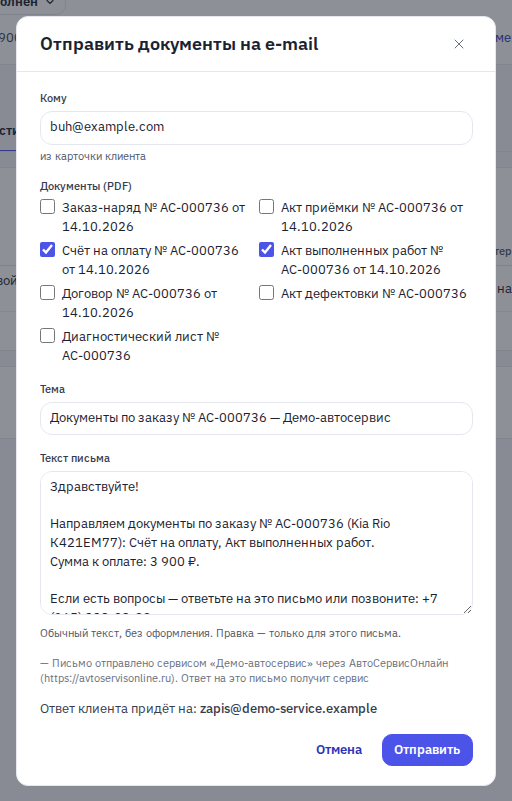
- For — the address from the client's item card (the “from the client's item card” note). You can enter a different address. There is one recipient. Cyrillic addresses, for example
buh@компания.рф, are supported. - The “Save to the client's item card” checkbox appears when you enter an address that is not in the item card. If the client had no address, the checkbox is already selected: you sent the email and also saved the address for future use. If the item card already contains a different address, the checkbox is cleared: select it only if you want to replace the address.
- Documents (PDF) — select the required documents: work order, check-in certificate, invoice for payment, certificate of completed work, contract, as well as a defect inspection certificate and diagnostic sheet if these modules are enabled and you have permission for them. The number and date are included in the name. What is preselected:
- legal entity or sole proprietor, order “Completed” or “Closed” — invoice and certificate of completed work;
- legal entity or sole proprietor, order in progress — invoice;
- individual — work order.
- Subject and Email text are already populated from the template (the order number, vehicle, documents, and amount due are inserted). You can edit them, but only for this email. A signature is displayed below the text in grey: it is always added and cannot be changed.
- At the bottom, it shows where the reply will arrive: “The client's reply will arrive at: …”.
- Click “Send”. “The email has been queued for sending” will appear, and the window will close.
The documents arrive as PDF attachments with the same names as when downloaded (“Invoice AS-000123.pdf”). Word files are not attached. One email can contain from one to seven documents, with a total size of up to 7 MB.
Recent sends
At the bottom of the window, if emails have already been sent for the order, up to three recent emails are displayed: the documents, status, time, and sender. Statuses: “queued” (still in progress), “sent” (the mail server accepted it), “not delivered” (the mail server declined it; the reason is in the order history), and “probably sent” (the server did not respond in time, so the email was most likely sent). The window reminds you that an email was sent recently: do not send the same invoice twice.
What is visible in the order history
A “Sent by e-mail” entry appears in the order's “History” tab, with the document names and a note indicating “address from the item card” or “different address.” The address itself is not included in the history: this is intentional, so the client's personal data is not entered into the log.
If the mail server did not accept the email, the history will contain a “Email not delivered” entry with the reason: “address not accepted,” “mail server unavailable,” or “email sending is not configured.” The sender will also receive an in-app notification: “Email for order No. … was not sent.” Correct the address and send the email again. If it says “email sending is not configured,” contact support.
The “sent” status means that the client's mail server accepted the email. The system does not know whether it was read or ended up in “Spam.” If the client's mailbox later returns the email (mailbox full, address closed), this is not visible in the order.
Email template
Path: Settings → Document templates → “Email to client” tab. The account administrator can see this tab when the module is enabled; other employees with access to the module can also read the template, but only the administrator can edit it.
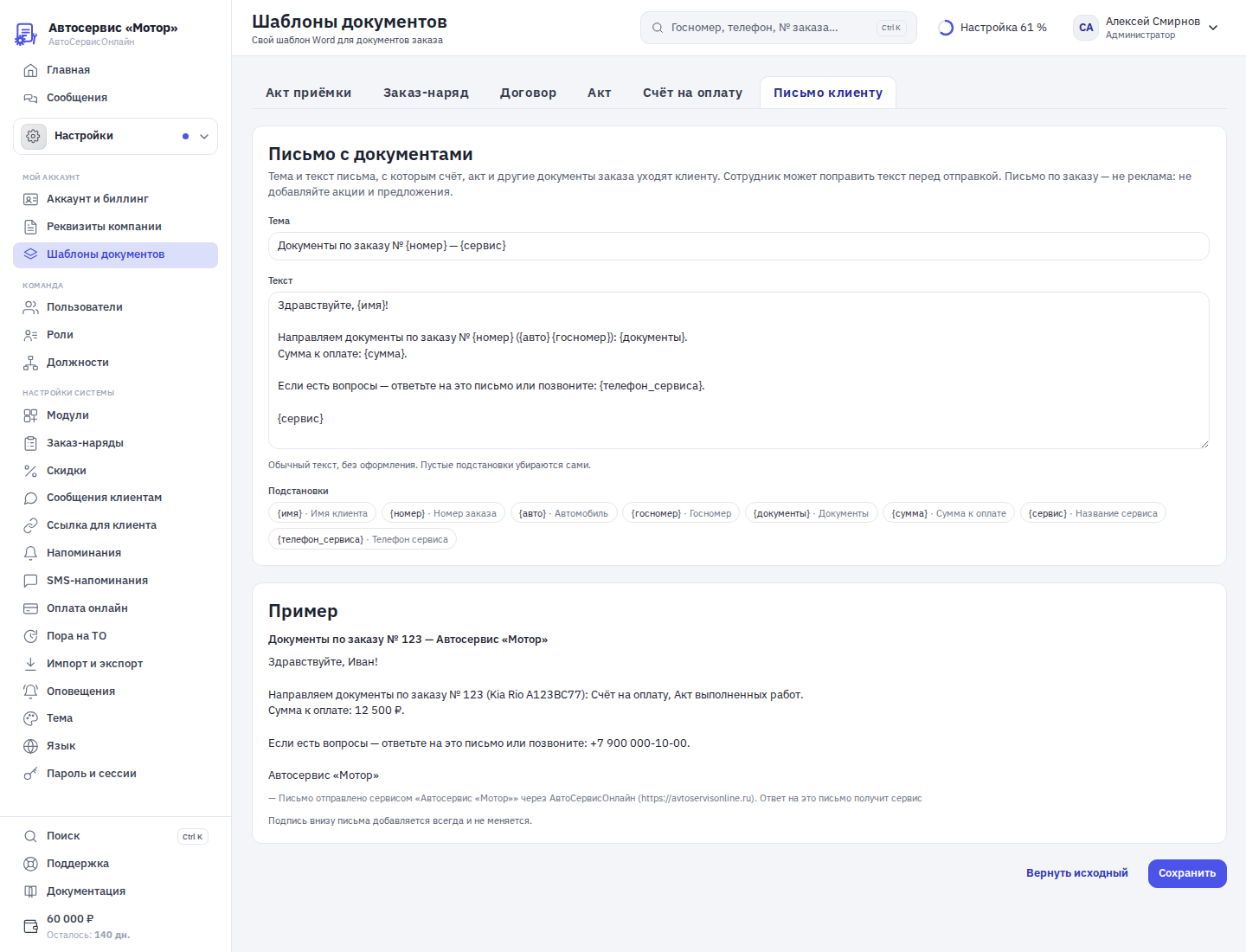
Fill in the Subject and Text. To insert a placeholder, place the cursor in the required position and click its chip below the fields:
| Placeholder | What will be inserted |
|---|---|
{имя} | Client's name (empty for organizations and sole proprietors; the line “Hello, !” becomes “Hello!”) |
{номер} | Order number |
{авто} | Vehicle make and model |
{госномер} | License plate |
{документы} | Names of attached documents |
{сумма} | Amount due |
{сервис} | Name of your service |
{телефон_сервиса} | Phone from the company details |
Empty placeholders are removed along with unnecessary punctuation, so the email will not contain trailing commas. Below, in the “Example” card, you can see the ready-to-use text and how it will look with your details. An unknown word in curly braces is highlighted, and such text cannot be saved.
Subject — up to 150 characters, on a single line; text — up to 2,000 characters, plain and unformatted. The “Restore original” button restores the default text; changes take effect after “Save” (“Saved ✓”). An order email is not an advertisement: do not add promotions or offers.
Limits
They protect your domain from being marked as spam and protect you from accidental duplicate sends. When the limit is reached, the window will indicate how much time must pass before you can try again, for example, “Sending limit: no more than 20 emails per hour. Try again after 15:40”.
- No more than 20 emails per hour and 100 per day per account;
- No more than 3 emails per hour per address;
- Before the first payment (during the trial period and after it), no more than 10 emails per day, and each document counts as a printout: you can print or send up to 3 orders of each type (Printing before the first payment);
- An email that could not be assembled or queued is not counted toward the limit.
When the account balance is exhausted, the tariff period has expired, or the trial period has ended without payment, preview mode is enabled and sending is unavailable: top up the balance.
What employees can see
- The “Send to e-mail…” option and the button in the “Documents” tab are available to employees who have the “Documents by e-mail” permission and access to work orders. The defect inspection report and diagnostic sheet are visible in the list only if the employee also has access to them.
- The account administrator can see the “E-mail for client replies” field and the “Email to client” tab.
- Everyone who can edit the client card can edit the client’s “E-mail” field: it is available in the new client window, in the card, in the client import, and is preserved when merging duplicates.
FAQ
- “There is no ‘Send to e-mail…’ option.” The module is disabled (Account → Tariff, enabled by the administrator), or your role does not have the “Submodule access” permission for “Documents by e-mail” or permission for orders (Settings → Roles).
- “The ‘Send’ button is greyed out.” Check the following in order: a client is selected in the order; the address has been entered correctly (no “Invalid e-mail” error); at least one document is selected; the service e-mail address is specified in the company details (the yellow “Specify in company details” line); the balance is not exhausted; the subject and text do not exceed the limit.
- “It says that the document cannot be generated.” The window shows the same reasons as regular printing: for example, the company name or tax ID is missing from the company details. Fill in the specified field and try again.
- “The client says there is no email.” Ask them to check “Spam” and add the sender’s address to their contacts. Check the address: it is not listed in the order history, but it is visible in the send window. If “Not delivered” is shown under “Recent sends”, the reason is given in the “Email not delivered” entry in the history.
- “The client replied to the email, but there is no response.” Replies are sent to the “E-mail for client replies” address specified in the company details, not to AutoServiceOnline. Make sure the address is correct and that the mailbox accepts incoming emails.
- “Can I send to several recipients at once or attach my own file?” No: one recipient, only the order documents in PDF. Mailings, copies, HTML emails, and automatic sending based on order status are not available.
- “Can I send an email from the cash desk, warehouse, or payroll?” No, only from an order.
- “Why is the email sent from AutoServiceOnline instead of our email address?” To avoid connecting a mailbox and domain, the email is sent from the configured System domain: this reduces the likelihood of it being marked as spam. Your company name is displayed in the sender name and signature, and the client’s reply is sent to you.
- “Sending limit…” The message specifies the time after which you can try again. If you need more emails per day, contact Support.
- “The email is not sent during the trial period.” Before the first payment, an email counts as a printout: after 3 orders of each type, payment is required (payment can also be made during the trial period — the paid period will start from the moment of payment). Tariff and balance.