Services reference
A catalog of typical auto service jobs with a price list: diagnostics, oil change, tire service, body repair. Each service has either a price or standard hours, while the page sets the auto service's standard-hour rate. A service from this reference data is added to a work order on the Labor and parts tab.
Where to find it
Menu path: Reference data → Services.
The item is visible if the account has the Work orders module enabled and the role has the Submodule access permission for Auto Service > Work orders (see Roles and permissions). Anyone with this permission can create, edit, and delete services and their prices; only the account administrator can change the standard-hour rate.
Standard-hour rate
Above the list is the Standard-hour rate section. This is a single rate for the entire auto service: it is applied to services billed “by standard hours” that do not have their own rate (caption below the field: “Applied to services ‘by standard hours’ that do not have their own rate.”).
- The Account administrator enters an amount in the “₽ per hour” field and clicks Save.
- An Employee can only see the value or the “not set” label — they cannot change the rate.
Changing the rate recalculates the price list in the reference data, but does not affect existing orders, documents, or reports — see What changes in existing orders for details.
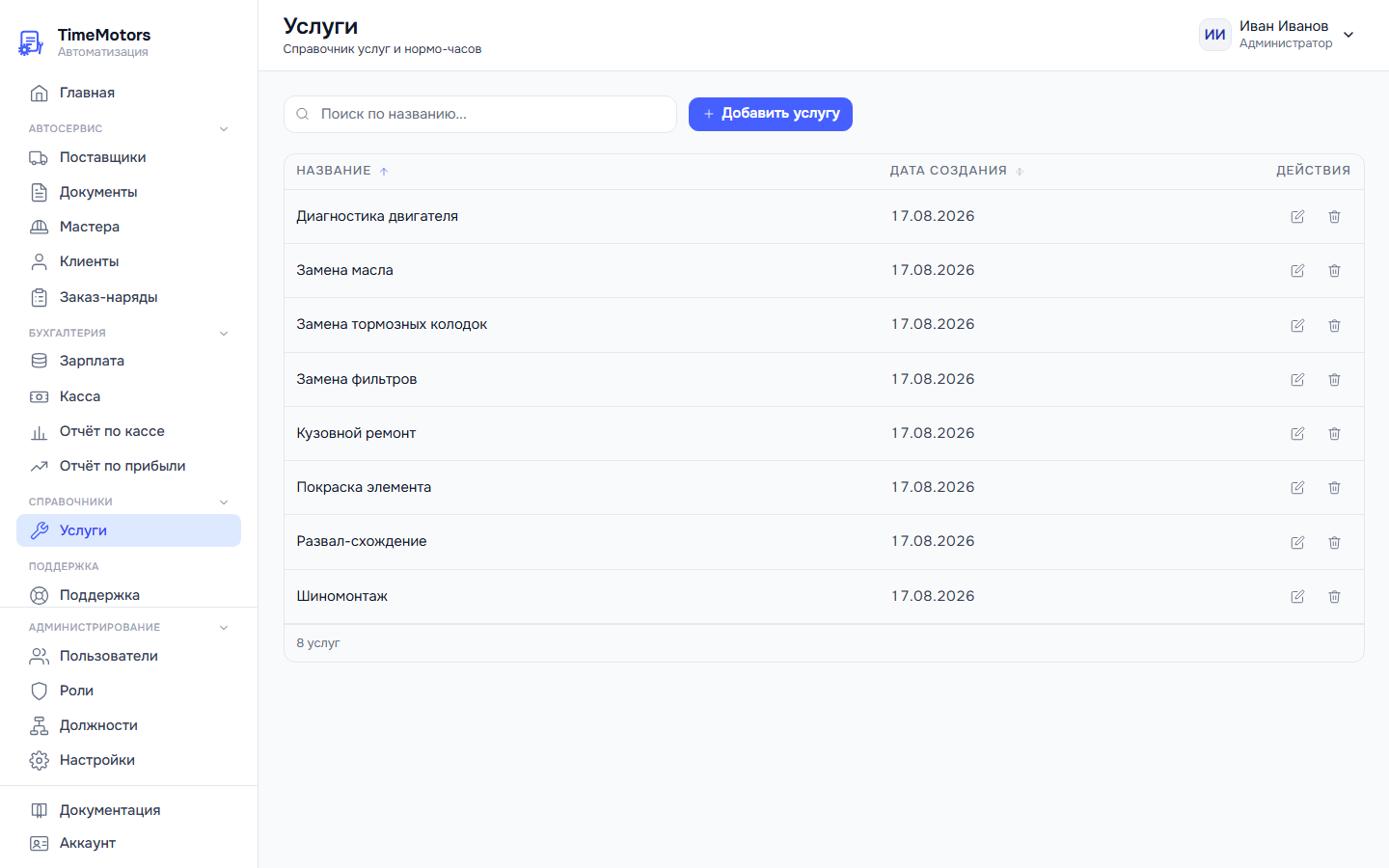
<!-- СКРИНШОТ: «Услуги» с ценами -->How the reference data is arranged
Since 23.11.2026, the services reference data is a file explorer, like in Windows: a folder tree on the left, a service table on the right. The structure is on the left, the contents of the selected folder on the right.
On the left — the “FOLDERS” panel:
- “All services” — the top node: on the right, all the services of the reference data are shown.
- “No folder” — the services that lie in the root.
- Folder — the name, an expand arrow, and a counter of the services inside. Nesting is shown by indentation.
- Clicking a folder row — anywhere on it — opens the folder contents on the right. Clicking the arrow only expands or collapses the folder.
- Right-clicking a folder works like left-clicking: the folder is selected and opened on the right, and the context menu appears: “Rename”, “Add folder”, “Add service”, “Archive” (in the archive — “Restore to work”). Right-clicking an empty area of the panel offers “Add folder” and “Add service”. On a phone, the same menu is opened by long-pressing a folder or a service.
On the right — the service table with the “NAME” and “PRICE” columns:
- Clicking a row selects the service. Ctrl + click adds the service to the selection or removes it from it, Shift + click selects a range, Ctrl + A selects all. To the left of the name there is a selection checkbox, and in the table header there is a common checkbox: it selects all the services or clears the selection.
- Editing a service opens by clicking the name itself — the text, over which the cursor turns into a hand. The rest of the row only selects.
- A selected group of services can be dragged into a folder right away — the whole group is moved.
- Under the service name there may be its path “Folder / Subfolder” — it is visible when the search is on, so that a service can be found in several branches at once.
A service is opened for editing by clicking the name. The price list is read exactly as before:
- “25 000 ₽” — fixed price.
- “0.5 h × 2 500 = 1 250 ₽” — service billed by standard hours: standard, rate, and calculated price.
- “0.5 h” — service billed by standard hours with neither its own rate nor a general rate: there is no basis for calculating the price.
- Grey “not set” — the service has neither a price nor standard hours.
Above the table are the “In progress” / “Archive” tabs (since 21.11.2026), the standard-hour rate, the “Search by name…” search field, the “No price” chip, the “More ▾” menu (Import price list…, Export price list, Download template, Import history), and the “+ Folder” and “+ Service” buttons. The “No price” chip leaves only services without a price or standard hours — making it convenient to fill in the price list one by one; clicking it again removes the filter. The search runs across the whole reference data: matching services remain, and the path is visible under the service name. The cross in the field clears the search.
The table is shown in full, with no incremental loading: inside the selected folder, services are sorted by name. The reference data remembers the search and the chip while the browser tab is open, and when they differ from the original settings, a “Reset” button appears next to them.
On a narrow screen, the folder panel and the table stack on top of each other, and the layout is adaptive.
Three buttons above the list
Above the services list, to the left of the “More ▾” menu, there are two new buttons; the third one is inside the menu itself.
- “Add popular” — a quick start for your price list: typical auto service jobs with guideline prices. The “Add popular services” window opens: you see what will be added and at which price, and what is already there (it is neither changed nor duplicated). The button at the bottom adds everything at once. The names are in Russian, as in our price list, and the prices are guidelines — adjust them to your service.
- “Send your price list to support” (blue) — send your own price list as a file: drag the file in (Excel, Word, CSV, text or a photo of the price list, up to 20 MB) or click “Choose a file”, then “Send to support”. The file goes to the support chat with a request to import the services — support reads it and creates the services in the reference data.
- “Clear all services…” — a red item in the “More ▾” menu, available to the account administrator. All services move to the archive and the folders stay empty; it is confirmed twice: with a window and by typing the word CLEAR. Services are no longer offered in work orders, but they stay in completed orders, payroll and reports. To bring them back: the “Archive” tab → “Reopen”.
Service folders
Folders keep the price list from turning into a wall of text: body repair, tire service, maintenance — each on its own branch.
Create a folder. Click “+ Folder” or select a folder in the tree and call up “Add folder” with the right mouse button. The “New folder” window opens:
- Enter the “Name” (required, up to 256 characters). Names are not repeated within one folder — the same name in another folder is allowed.
- The “Inside folder” field shows where the new folder will go: it is the folder selected in the tree (or “Top level”, if no folder is selected). The parent can be changed right in this field.
- Click “Create”.
Nesting. From the context menu of a folder — “Add folder”: the new folder becomes nested in the selected one. You cannot nest more than 8 levels deep. A folder cannot be nested in itself or in its own subfolder.
Move. Only by dragging, like in a file explorer:
- Service — drag it from the table onto a folder in the tree. To return a service to the root, drop it over “No folder”.
- Folder — drag it onto another folder or onto “No folder” (to the root). A folder cannot be dropped into itself or into its own subfolder — such a move will not be carried out.
On a phone, dragging is not convenient — there a service is moved through the “Folder” field in its window (the folder for a new service is chosen there too).
Rename. Right-click the folder → “Rename”. Only the name changes: the folder stays in its place and in the same branch.
Archive. “Archive” moves the folder together with all its contents into the archive: nested folders and services are archived as well. In orders, payroll, and reports the services remain — the same as when an ordinary service is archived.
Restore. On the “Archive” tab, for a folder: right-click → “Restore to work”. Only what was archived together with this folder comes back; a service that was archived earlier stays in the archive. In the archive, a folder can only be restored. You cannot add folders and services to it, move it or delete it — only “Restore to work” is available. If the parent of the folder has stayed in the archive, the restored folder returns to the root of the reference data.
No deletion. A folder cannot be deleted from the reference data — there is only the archive.
<!-- SCREENSHOT: reference data explorer — folder tree on the left, service table on the right -->How to create a service
- Click “+ Service” — the “New service” window opens.
- Enter the “Name” (required, up to 256 characters).
- In the “Folder” field, choose where to put the service: “No folder” (the root of the reference data) or a specific folder from the tree. By default it shows the folder selected in the tree on the left. You can move the service later — drag it onto another folder in the tree.
- In the “How to calculate” field, select the method:
- “Fixed price” — enter the “Price, ₽”. The service will be added to the order with this price and a quantity of 1.
- “Standard hours” — enter the “Standard hours” (for example, 0.5). The calculation is immediately displayed below the field: “= 1 250 ₽ at a rate of 2 500 ₽”. The service will be added to the order using the “rate × standard hours” mode.
- Click Create.
You can leave the price unspecified — the service will be created “without a price”, and you can enter its price in the order later. However, orders are assembled faster with a price list: select a service, and the price or standard hours are already filled in the row.
The service is immediately available in an order: Labor and parts tab → Add ▾ in the Labor table → From reference data.
You can also create a service directly from an order: in the Select service window, enter the name in the “Search or enter a new service…” field and click “Create ‘name’ and add”. The button appears only if no service with exactly the same name exists yet. Such a service is created without a price; enter the price in the order row and click “To price list” — see Labor in an order.
Selecting a service in a work order
The Select service window (the “From reference data” button) is a tree: folders and services side by side, nested folders expanded with an arrow. The search runs across the tree: matching services and their branches remain, and the path “Folder / Subfolder” is visible under the service name. Archived services and services from archived folders are not offered here.
Click a service — it is added to the order. Is the service you need not there? Enter the name in the search field and click “Create ‘name’ and add” — the service will be created in the root of the reference data and immediately added to the order.
Custom rate for a service
Sometimes the standard-hour rate for a service is higher or lower than the general rate — for example, for body repair. In the service editor, in “Standard hours” mode, click the “Custom rate for this service” link — the “Rate, ₽/h” field will appear. While it is empty, the auto service rate applies; enter a value and the service will use its own rate.
If there is neither a custom rate nor a general rate in “Standard hours” mode, the editor will display: “Standard-hour rate is not set — specify it on the ‘Services’ page.” Set the rate in the section at the top.
Periodic jobs: “Repeat”
If the Service due module is enabled, the service window contains the “Repeat: every … km or … months” field: specify how often the job is repeated (for example, oil: 10 000 km or 12 months), and the program will automatically remind you which clients are due for service. Mileage — from 500 to 500 000 km, lead time — from 1 to 120 months; whichever comes first applies. If both fields are empty, the job is not periodic. Such services are marked in the list with an icon such as “↻ 10 000 km / 12 months”. To fill in many services quickly, use the “Select intervals” button on the “Service due” page. For details, see Service due and “Haven’t been for a long time”.
Editing and deletion
- Edit — clicking the name of the service (the text itself) or right-clicking the row → “Edit” opens the “Edit service” window, followed by Save. The calculation method, price, standard hours, custom rate, and the folder the service is in can also be changed here.
- Renaming changes the name everywhere. An order row does not store a copy of the name and takes it from the reference data. The new name will appear in all orders, including completed and closed orders, in reports, and in documents the next time they are printed. Renaming does not affect prices in orders — they are stored directly in the order rows.
- Archive (since 21.11.2026) — right-clicking the service → “Archive”, then confirmation “Archive”. Deletion is no longer available in the reference data: a service that is already used in work orders is not deleted — instead it goes to the archive. An archived service is not offered in the service search when adding work to an order (“Add → From reference data”), but it remains in completed orders, payroll, and reports; it can be edited at any time.
- Restore to work — on the “Archive” tab, right-clicking the service → “Restore to work”. The service list has two tabs: “In progress” and “Archive” — just like for the mechanics. An empty archive — the message “There is nothing in the archive yet”.
What changes in existing orders
The price list works only “going forward”: it is applied to a new order row when the service is selected. After that, the row operates independently.
- Changing a service price, standard hours, or rate (general or custom) does not change rows in existing orders, and therefore does not affect the related documents and reports.
- Editing the price in an order row does not change the price list. The exception is the “To price list” link in the row: it writes the row values to the service at your request (details).
- The row total is rounded to kopecks.
If a job has a fixed price for a set of items, create a job bundle: a bundle item without its own price takes the price from the price list.
You can upload a price list from Excel or CSV and export it back: More ▾ → Import price list… above the list, see Price list import and export.
Merging “Services” and “Labor”
Earlier versions of the system had two entities — “Services” and “Labor”. They have been merged into one — everything is now called Services and follows a unified logic.
Common mistakes
- “I changed the name, and it also changed in old orders”. This is by design: orders take the name from the reference data. If you need to keep the old name, create a new service and leave the old one unchanged.
- “The service cannot be deleted”. It is used in at least one work order — this way the system protects the order history and payroll. Rename it, for example by adding “(do not use)”.
- “The service was added to the order with a price of 0”. Its price list price is not set: find it using the “No price” chip and enter the price or standard hours. Existing order rows are not retroactively changed — edit the price directly in the row.
- “There are standard hours, but no price — the price list only shows ‘0.5 h’”. The rate is not set. An administrator can enter “₽ per hour” in the Standard-hour rate section or a custom “Rate, ₽/h” in the service. An employee cannot change the rate — ask an administrator.
- “There is no ‘Services’ item in the menu”. The account does not have the Work orders module enabled, or the role does not have the Submodule access permission for Auto Service > Work orders. Also check whether the Reference data group in the menu is collapsed (click its title to collapse or expand it).
- “I cannot delete a folder”. Folders cannot be deleted — there is only the archive. Right-click the folder → “Archive”: the folder goes to the archive together with all its contents, and you can restore it on the “Archive” tab.
- “After archiving a folder, it and its service disappeared”. This is by design: archiving a folder archives its contents. Restore the folder on the “Archive” tab — right-click → “Restore to work” — and the services come back with it. A service that was archived earlier stays in the archive.
- “I cannot move a service into a folder”. Moving is done by dragging: take the service from the table on the right and drop it onto a folder in the tree on the left. Over “No folder” it returns to the root. There is no “Move” item in the menu.
- “I clicked a service — the edit window opened, but I only wanted to select it”. Editing opens only when you click the name itself. Clicking an empty area of the row selects the service; Ctrl+click and Shift+click add to the selection and select a range.
- “The service is not found in the search when adding it to an order”. Check whether it is archived or is in an archived folder: such services are not offered in the selection window.