Recommendations for the next visit
The mechanic leaves a note after completing the work: “At 100,000 mileage, replace the timing belt.” When opening the next order for the same vehicle, a block with open recommendations appears. The client has arrived—you have not forgotten anything.
The Next Visit Recommendations module. It is included in the standard set of modules for new accounts; if there is no Vehicle Recommendations block, the module is disabled for the account (Support can enable it—write “Support” in the chat), or the employee role does not have the “Submodule access” permission for “Next Visit Recommendations.”
Where to find it
In the order card, in the right column, there is the Vehicle Recommendations block (below the Planning block and above Notes). It contains the Recommendations from the previous visit panel with a counter of open recommendations. On mobile devices, the block appears below the tab content. The complete list for the vehicle, including completed recommendations, is available in the client card, under the Vehicles tab: click the vehicle row to open the Recommendations for the next visit block.
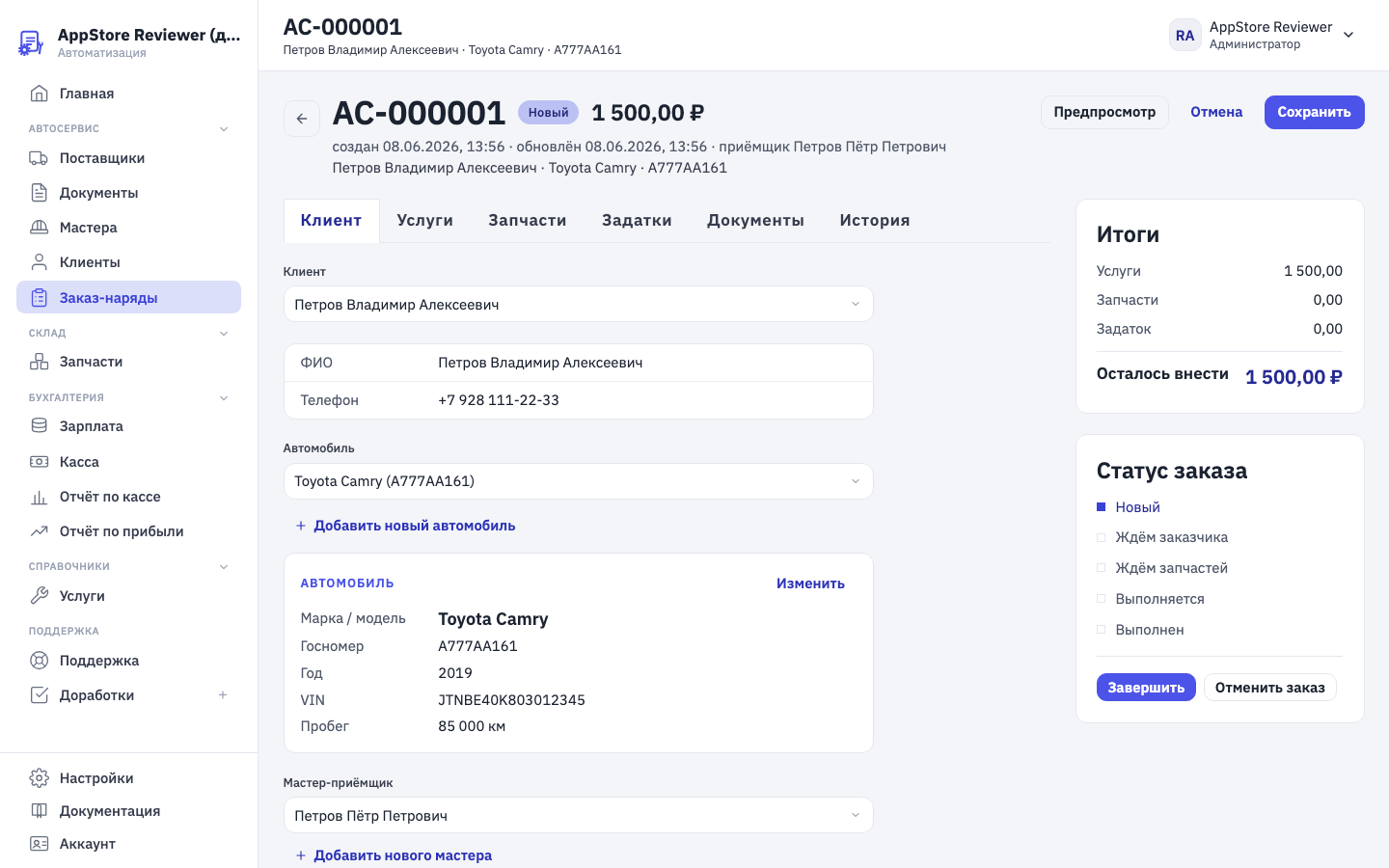
The block appears as soon as a vehicle is selected in the order (the Change button in the header → Vehicle). If there are no open recommendations, it says “There are no recommendations for this vehicle” and includes an add button.
How to add one
- In the order card, select the client and vehicle (Change in the header).
- In the right column, in the recommendations block, click Add recommendation—the New recommendation window opens.
- In the What we recommend field, describe what needs to be done and, if desired, add a condition: At mileage, km or Or by date.
- Click Save in the window—the recommendation is saved immediately (without saving the order) and linked to the vehicle, not to the order.
You cannot edit the recommendation text—delete it in the client card and create it again.
How to close it
During the next visit:
- Create a new order for this vehicle.
- The block will show all open recommendations.
- Next to a completed recommendation, click Completed. The recommendation is closed immediately and remembers the current order as the order in which it was completed.
- Add all to notes (or the plus button “Add to order notes” for an individual row) adds the recommendation text to the order Notes as a “Recommendations from the previous visit:” block, so you do not forget to discuss it with the client. Notes is a block in the same right column; save them using the Save button in the order header.
Completed recommendations are not displayed in the order block—they are available in the client card, under the Vehicles tab. You can also delete a recommendation there.
In an order with the Closed status, the block buttons do not work—first Expand order.
Deferred work
If the client declined a service in the order, click ⋮ → Defer for later in the row: the row becomes a recommendation with a price and returns to the order during the next visit via the Add to order button. Recommendations with an amount display “Deferred by X ₽” in the block. All deferred work for the account is collected in the Auto service → Deferred work list; for details, see Deferred work.
Useful information
- Recommendations are linked to the vehicle, not to the client—this is convenient when one client has several vehicles.
- Recommendations are prompts for employees: the program does not send them to the client automatically. Reminding the client about the visit is the service advisor’s task.